You’ve been recommended SS IPTV by other cord-cutters—they rave about its simplicity, its clean interface, how it handles playlists effortlessly. You’re running Linux, you’re ready to set it up, and then you hit the familiar wall: SS IPTV’s website focuses almost entirely on Smart TVs. The installation guides are for Samsung and LG televisions, with brief mentions of other platforms that leave you wondering where Linux users fit into the picture. You’re searching for answers, finding fragments of information, and feeling increasingly frustrated that something called “Simple Smart IPTV” is anything but simple to get working on your system.
I completely understand that frustration. SS IPTV was designed primarily for the Smart TV market, and the developers haven’t prioritized desktop Linux users. But here’s what those incomplete guides won’t tell you: SS IPTV has options that work on Linux, and once you understand what’s actually available, this becomes remarkably straightforward. You’re not missing some secret knowledge—you just need someone to explain your actual options clearly. Let’s do that right now.
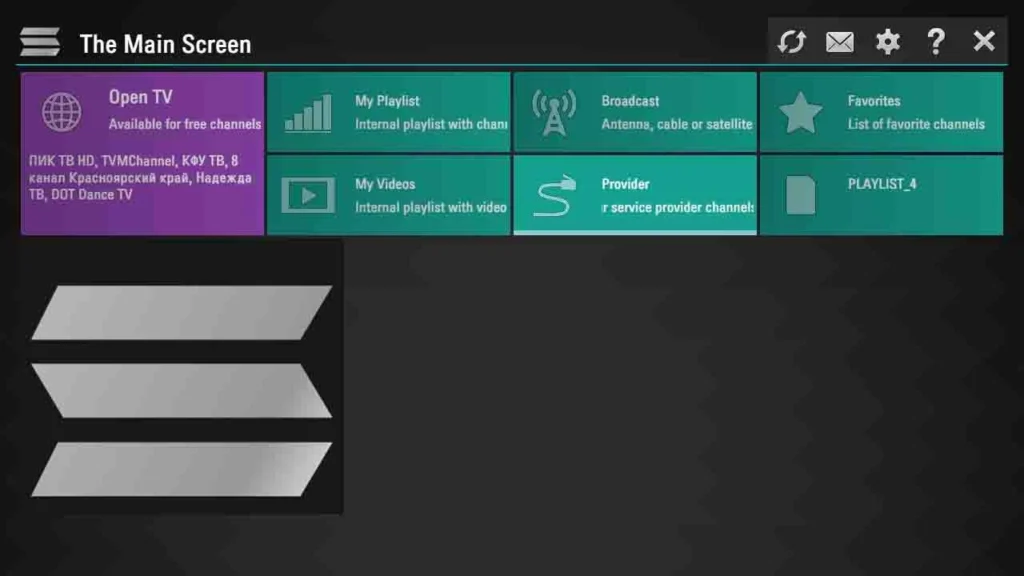
Source of Overwhelm #1: Understanding the SS IPTV Platform Landscape
Why it’s confusing: When you search for SS IPTV installation, you’re bombarded with platform-specific guides—Samsung TV setup, LG TV activation, mentions of a “fork player” that may or may not be the same thing, and vague references to web access. Nobody clearly explains which platforms are officially supported or what Linux users should actually do.
The clear solution: Let’s map out the SS IPTV ecosystem with clarity:
Official SS IPTV platforms:
- Samsung Smart TVs (Tizen OS) – Primary platform
- LG Smart TVs (webOS) – Primary platform
- Android TV devices
- Amazon Fire TV/Stick
- Web browser access (THIS is your Linux solution)
What SS IPTV offers: SS IPTV is a free IPTV player (unlike Smart IPTV which charges per device). You simply load the application, add your IPTV provider’s M3U playlist, and start streaming. No activation fees, no complex licensing.
Your Linux options ranked:
- Web Player (Easiest and recommended) – Access through any browser
- Android Emulation (Complex) – Run Android version through Anbox
- Native Alternatives (Most practical) – Linux IPTV players with similar functionality
The key insight: SS IPTV offers a web-based player that works perfectly on Linux through your browser. This isn’t a workaround or compromise—it’s an official access method that requires zero installation. This is genuinely the best path for Linux users.
Source of Overwhelm #2: Accessing and Using the SS IPTV Web Player
Why it’s confusing: The SS IPTV website doesn’t prominently advertise the web player option. You might stumble upon mentions of it in forums, but nobody clearly explains how to access it, whether it has full functionality, or if it works as well as the TV versions.
The clear solution: The web player is your simplest, most reliable option. Here’s exactly how to use it:
Step 1: Open your web browser Use Firefox, Chrome, Chromium, or any modern browser. They all work equally well.
Step 2: Navigate to the SS IPTV web player Go to: https://ss-iptv.com/en/users/playlist
This is the official web interface for SS IPTV.
Step 3: Add your playlist You have two methods:
Method A – Direct URL:
- Click “Add” or the “+” button
- Select “Add by URL”
- Paste your IPTV provider’s M3U playlist URL
- Give it a name (like “My IPTV”)
- Click “Save”
Method B – File Upload:
- If you have an M3U file downloaded
- Click “Add”
- Select “Upload file”
- Choose your .m3u file
- Click “Save”
Step 4: Start watching Your channels will appear organized by category. Click any channel to start streaming directly in your browser.
Step 5: Bookmark for easy access Press Ctrl+D to bookmark the page. Now you have instant access to SS IPTV anytime.
That’s it. No installation, no dependencies, no Android emulation, no Wine. Your browser does everything.
Source of Overwhelm #3: Web Player Limitations and Optimization
Why it’s confusing: You’re using the web player successfully, but you’re experiencing some limitations—maybe you can’t find advanced settings, playback isn’t as smooth as you’d like, or you’re wondering if you’re missing features that the TV versions have.
The clear solution: Let’s optimize the web player experience and understand its capabilities:
Browser optimization for smooth streaming:
Enable hardware acceleration in Firefox:
- Type
about:preferencesin the address bar - Scroll to “Performance”
- Uncheck “Use recommended performance settings”
- Check “Use hardware acceleration when available”
- Restart Firefox
Enable hardware acceleration in Chrome:
- Go to Settings → System
- Enable “Use hardware acceleration when available”
- Restart Chrome
Update your graphics drivers:
sudo ubuntu-drivers autoinstallReboot after installation. This single step solves most playback issues.
What the web player offers:
- Full playlist support (M3U, M3U8)
- Channel categories and organization
- Basic playback controls
- Multiple playlist management
- Channel search functionality
What it lacks compared to TV apps:
- No EPG (Electronic Program Guide) display
- Limited customization options
- No recording features
- Simpler interface (though this can be a plus)
For EPG/advanced features: If you need full EPG support and advanced IPTV features, native Linux players like Hypnotix or Kodi provide these while maintaining browser-free operation.
Performance tips:
Close unnecessary tabs: Each browser tab consumes resources. Close tabs you’re not using while streaming.
Test your internet speed:
speedtest-cli(Install with sudo apt install speedtest-cli if needed)
Minimum speeds needed:
- SD quality: 3-5 Mbps
- HD quality: 10+ Mbps
- 4K quality: 25+ Mbps
Use a wired connection: Ethernet provides more stable streaming than WiFi when possible.
Source of Overwhelm #4: The Android Emulation Alternative
Why it’s confusing: Maybe you’ve heard SS IPTV has an Android version with more features, and you’re wondering if it’s worth the effort to run it through Anbox. The information about whether this provides significant advantages is unclear, leaving you unsure if you should invest time in a complex setup.
The clear solution: Let’s evaluate whether Android emulation is worth pursuing:
When Android emulation makes sense:
- You specifically need features not in the web player
- You’re already comfortable with Anbox
- Your hardware is powerful enough to handle emulation overhead
- You want offline playlist management
When to stick with the web player:
- You want the simplest, most stable experience
- Your primary need is watching IPTV streams
- You prefer minimal resource usage
- You value reliability over extra features
If you decide to pursue Android emulation:
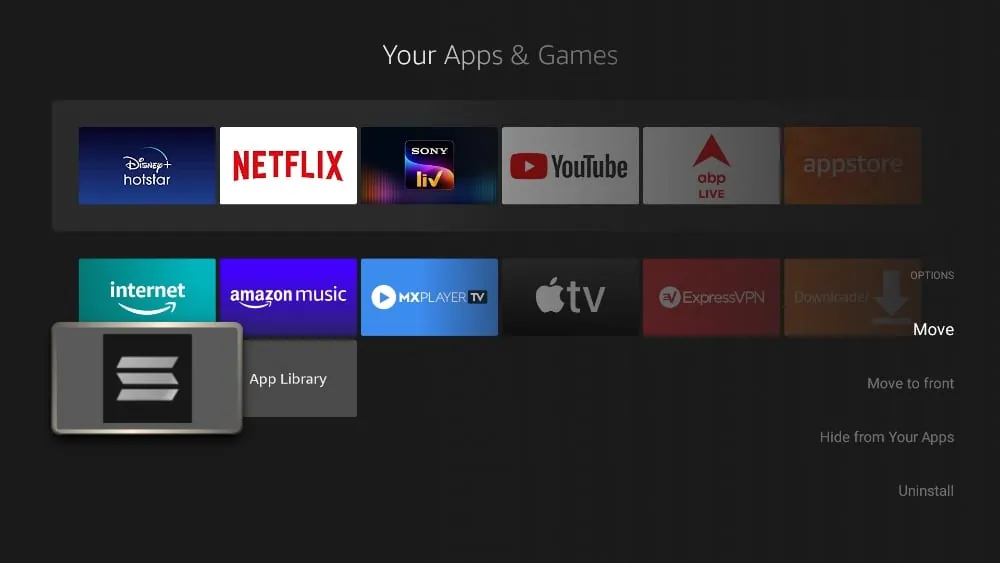
The process is similar to other Android apps on Linux:
- Install Anbox (as covered in previous guides)
- Download SS IPTV APK from APKMirror or APKPure
- Install via ADB:
adb install ss-iptv.apk - Launch through Anbox Application Manager
Honest assessment: For most users, the web player provides everything needed without the complexity, overhead, or potential stability issues of Android emulation. The extra features rarely justify the extra effort on Linux.
Source of Overwhelm #5: Playlist Management and Organization
Why it’s confusing: You’ve added your first playlist successfully, but now you want to add multiple playlists from different providers, organize channels better, or switch between playlists efficiently. The web player’s interface is minimal, and you’re not sure how to manage everything effectively.
The clear solution: Let’s master playlist management in SS IPTV:
Adding multiple playlists:
You can add unlimited playlists to SS IPTV:
- Click “Add” for each new playlist
- Give each a descriptive name (“Sports Channels,” “Movies,” “International TV”)
- Each playlist appears in the sidebar
- Click between them to switch
Organizing your playlists:
For provider-based organization:
- “Provider A – Main Channels”
- “Provider B – Backup Channels”
- “Free Public Channels”
For content-based organization: If your provider gives you one massive M3U, you can’t reorganize within SS IPTV web player, but you can:
- Use online M3U editors to split your playlist
- Create separate M3U files for sports, movies, news, etc.
- Add each as a separate playlist in SS IPTV
Playlist maintenance:
Updating playlists: Most IPTV provider URLs update automatically. If your channels stop working:
- Remove the old playlist
- Re-add with the updated URL from your provider
Backup your playlists: Since the web player stores data in your browser:
- Bookmark all your playlist URLs in a text file
- If you clear browser data, you’ll need to re-add them
- Save M3U files locally as backup
Search functionality: Use the search box (if available in the web player) to quickly find channels by name rather than scrolling through categories.
The Better Alternative: Native Linux IPTV Players
Let me be transparent about your options: While SS IPTV’s web player works fine, native Linux IPTV applications often provide superior experiences:
Hypnotix (Best for most users):
sudo apt install hypnotix- Beautiful interface designed for Linux desktops
- Full EPG support
- Multiple provider management
- Keyboard shortcuts optimized
- Free and open-source
- Better performance than web players
Kodi with IPTV Simple Client:
sudo apt install kodi- Complete media center experience
- Excellent IPTV integration
- Rich EPG support
- Recording capabilities
- Highly customizable
VLC Media Player:
sudo apt install vlc- Already installed on most systems
- Media → Open Network Stream → Paste M3U URL
- Lightweight and reliable
- Simple but functional
FreetuxTV:
sudo apt install freetuxtv- Dedicated Linux IPTV player
- Good channel organization
- Lightweight interface
These aren’t fallback options—they’re purpose-built for Linux and often outperform web-based solutions in features, performance, and user experience.