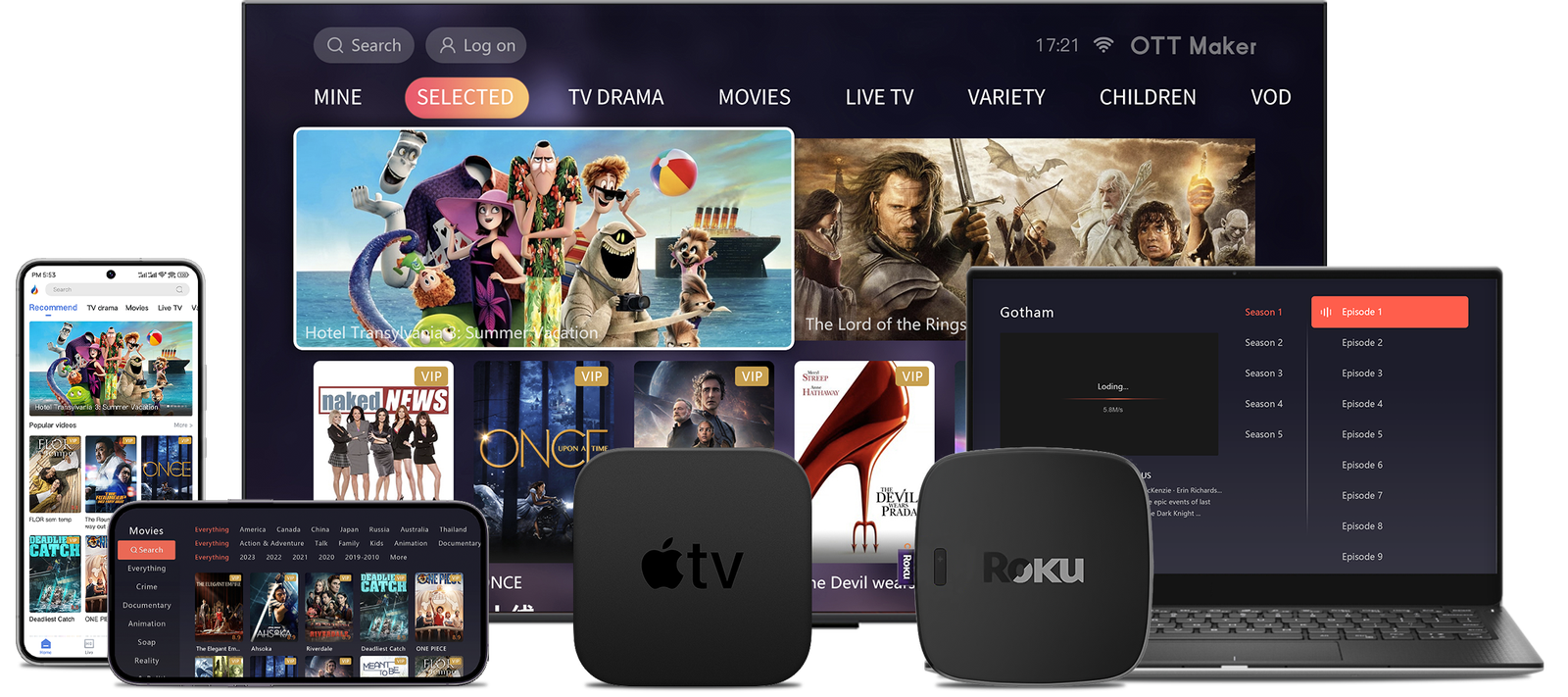
Streaming content has evolved beyond traditional platforms, and SS IPTV stands out as a game-changer. Designed for flexibility, this media player lets users curate their own entertainment experience. Unlike subscription-based services with fixed channels, it supports custom playlists, putting viewers in full control of their content.
What makes this app unique is its official availability in select TV app stores, including LG’s platform. This distinguishes it from alternatives requiring third-party downloads. With multi-playlist compatibility and parental controls, it adapts to diverse household needs while maintaining a clutter-free interface.
Our guide focuses on maximizing these features for Canadian users. We’ll walk through optimizing playlist management and tailoring settings for different devices. Whether you’re tech-savvy or new to IPTV solutions, our approach simplifies the process without compromising on customization potential.
Key Takeaways
- User-controlled streaming experience with personalized playlists
- Officially available in select app stores for secure installation
- Multi-platform support beyond Android devices
- Built-in tools for family-friendly content management
- Lightweight design optimized for smooth performance
Introduction
Modern viewers demand personalized entertainment solutions that adapt to their unique preferences. SS IPTV delivers precisely this flexibility through its media player framework, offering a fresh approach to content consumption.
Overview of SS IPTV
This platform operates as a gateway rather than a traditional service. Users integrate their preferred content sources via M3U playlists, bypassing pre-set channel bundles. The technology behind it – internet protocol television (IPTV stands for this format) – streams media directly through web connections.
Three core features define its value:
- Zero pre-installed channels for clutter-free operation
- Multi-device synchronization across TVs and mobile devices
- Parental controls for family-oriented households
Why This Guide is Essential for Canadian Users
Canadian audiences face unique challenges when accessing global programming. Regional licensing agreements often block popular international shows. Our walkthrough addresses these hurdles by demonstrating how to legally integrate Canadian IPTV packages with the player.
The platform’s design helps avoid geo-blocking pitfalls while maintaining compliance with local regulations. We’ll show how to balance diverse content sources with Canada’s streaming laws – crucial knowledge for anyone building a customized viewing experience.
Understanding SS IPTV and Its Benefits
In an era where customization defines digital experiences, SS IPTV reimagines media consumption through adaptable frameworks. This platform bridges the gap between raw content sources and polished viewing environments.
Core Functionality Explained
The app operates like a universal remote for streaming services. Instead of hosting channels, it organizes external M3U playlists into a unified guide. Users connect their preferred providers through a web portal using unique activation codes.
Key technical aspects include:
- Simultaneous management of 5+ playlists
- Drag-and-drop channel organization
- Remote updates via any web browser
“SS IPTV’s minimalist design cuts through the clutter of feature-heavy alternatives.”
Competitive Edge in Streaming Tech
When stacked against popular iptv apps, this solution shines through accessibility. Unlike competitors requiring APK sideloading, it’s officially available in LG/Samsung app stores for smart tvs.
| Feature | SS IPTV | Alternatives |
|---|---|---|
| App Store Availability | Yes | Limited |
| Playlist Limit | Unlimited | 3-5 max |
| Device Support | TVs + Mobile | Single ecosystem |
The platform’s focus on essential tools makes it ideal for users prioritizing reliability over complex features. Parental controls and multi-device sync capabilities further cement its position as a household-friendly option among streaming services.
How to install SS IPTV on android/ smartphone
Accessing global content libraries requires a reliable streaming solution. While some regions may not list the app on Google Play, alternative installation methods ensure universal availability. We recommend using verified APK files from the developer’s portal for optimal security.
Step-by-Step Installation Process for Android Devices
Begin by adjusting your device settings:
- Navigate to Security > Unknown Sources
- Enable installation from external sources
- Download the APK file from official channels
Launch the downloaded package and follow visual prompts. First-time users receive a unique connection code during setup – essential for linking playlists later. Our detailed installation walkthrough covers advanced configuration tips for Canadian networks.
Troubleshooting Common Installation Issues
Failed installations often stem from security restrictions. Double-check Unknown Sources settings if the app won’t load. Corrupted downloads require fresh APK retrievals – always verify file sizes match official specs.
Older Android devices might need OS updates for compatibility. Persistent errors could indicate regional blocks – try switching networks or using a VPN. For Google Play availability checks, search using the exact package name rather than generic terms.
Installing SS IPTV on Smart TVs and Other Devices

Smart TVs unlock SS IPTV’s full potential through larger screens and simplified navigation. We’ll break down installation methods for popular Canadian household models, focusing on official channels and reliable workarounds.
Official Installation for LG Smart TV Owners
LG users enjoy direct access through the Content Store. Follow these steps:
- Press the Home button on your remote
- Navigate to LG Content Store
- Search using the exact phrase “SS IPTV”
The app appears in search results for all Canadian regions. Installation completes in under two minutes with stable internet.
Samsung TV Solutions: USB & Legacy Models
Most Samsung smart TVs require alternative methods:
- 2016-2019 Tizen models: Use USB drives with extracted app files
- 2012-2015 models: Enable developer mode for sideloading
For USB installations:
- Format drive as FAT32
- Copy extracted files to root directory
- Insert while TV is powered on
| Installation Method | LG Models | Samsung Series |
|---|---|---|
| App Store Availability | All WebOS versions | Not supported |
| USB Compatibility | N/A | J/H/F/E Series |
| Setup Time | 2 minutes | 8-12 minutes |
Connection issues often stem from outdated TV software. Check for system updates before installation attempts. For USB recognition problems, try different drive brands – some TVs prefer SanDisk or Samsung-branded storage.
Managing Playlists and Customising Your Viewing Experience
Tailoring your streaming setup begins with effective playlist management. Our team tested various configuration methods to identify the most efficient workflow for Canadian households.
Uploading and Editing Your M3U Playlists
Start by launching the app to retrieve your unique connection code. This six-digit number links your device to the web editor. Visit the official portal through any browser and enter the code to access your personal dashboard.
Three upload options exist for playlists:
- Direct URL pasting for live updates
- Local file uploads from your device
- Cloud storage integration (Dropbox/Google Drive)
| Playlist Format | Max Entries | Update Frequency |
|---|---|---|
| M3U | Unlimited | Real-time |
| XSPF | 500 channels | Manual refresh |
Customisation Options and Parental Controls
Organize channels into custom categories using drag-and-drop sorting. We recommend assigning unique icons and EPG data for visual navigation. Households with children should enable the parental controls immediately after setup.
Key security features include:
- 4-digit PIN protection for specific channels
- Content filtering by rating categories
- Time-based access restrictions
Interface adjustments let you hide unused features and prioritize favorite content. Save different layout presets for family members – ideal for shared devices.
Exploring SS IPTV Features and Comparing with Competitors
Tailored viewing experiences demand tools that adapt to individual preferences. SS IPTV delivers this through interface flexibility and multi-source management, setting it apart in Canada’s crowded streaming landscape.
Interface Customisation and Multi-Playlist Support
The app transforms generic channel lists into personalized hubs. Users select from 15+ language options and arrange channels through drag-and-drop editing. Custom icons and background themes let households create distinct profiles for different viewers.
Managing multiple content sources becomes straightforward with these features:
- Simultaneous activation of 5+ playlists
- Automatic updates across linked devices
- Quick-switch tabs for different genres
| Playlist Feature | SS IPTV | Typical Alternatives |
|---|---|---|
| Maximum Playlists | Unlimited | 3-5 |
| Update Method | Web Portal | Manual Upload |
| Cross-Device Sync | Instant | 24-hour Delay |
How SS IPTV Stands Out Against Other IPTV Apps
While popular iptv apps focus on feature overload, this solution prioritizes essential tools. TiviMate locks advanced controls behind paywalls, while Smart IPTV struggles with basic interface polish.
“SS IPTV’s clean layout helped our family avoid decision fatigue – we access favorite channels in two clicks.”
| Factor | SS IPTV | IPTV Smarters |
|---|---|---|
| Setup Complexity | Low | High |
| Parental Controls | PIN + Scheduling | Basic Filters |
| TV Compatibility | LG/Samsung/Android | Android Only |
This balance of simplicity and functionality makes the app ideal for Canadians seeking hassle-free streaming. Remote playlist management via any browser further streamlines the experience, eliminating the need for constant device tinkering.
Ensuring Legal, Safe, and Secure Usage
Navigating streaming platforms responsibly requires balancing cutting-edge tools with regional regulations. While media players like SS IPTV provide technical capabilities, users must understand their role in content access. The app operates as a neutral tool – its legality depends entirely on how you use it.
Protecting Your Privacy with VPNs
Canadian internet providers often monitor streaming activity through deep packet inspection. A reliable VPN service encrypts your connection, hiding viewing habits from ISPs. This prevents bandwidth throttling and safeguards against accidental exposure to questionable links.
When choosing a VPN:
- Verify no-logs policies through independent audits
- Select servers in copyright-friendly countries
- Test speeds during peak streaming hours
Legal Considerations When Streaming in Canada
Canada’s Copyright Act permits accessing content from authorized distributors only. We recommend cross-checking playlist sources against the official government site. Legitimate IPTV services always provide:
- Transparent licensing agreements
- Clear pricing without lifetime subscriptions
- 24/7 customer support channels
Borderline legal grey areas emerge when using international links. Stick to Canadian-approved providers to avoid complications. Remember – the media player itself won’t land you in hot water, but your playlist choices might.
Conclusion
In a market saturated with subscription services, SS IPTV delivers something rare – complete user control without hidden costs. This free service continues to thrive in 2025 by focusing on core strengths: adaptability across devices and genuine customization.
Canadian viewers gain particular advantages. The app works seamlessly with regional content sources while avoiding platform lock-in. Whether organizing channels through its web portal or securing connections with VPNs, users maintain full ownership of their streaming experience.
We recommend this solution for those who:
- Value interface simplicity over bloated features
- Require multi-device synchronization
- Prefer curating their own content libraries
Always verify playlist sources and use encryption tools when accessing international links. The service itself operates legally, but responsibility lies with users to choose compliant content providers.
For Canadians tired of fragmented streaming apps, SS IPTV remains a refreshing alternative. Its commitment to open-ended media consumption empowers viewers in ways most platforms avoid by design. That independence – paired with zero ongoing costs – makes it worth exploring today.