You’ve been searching for the perfect IPTV player for Linux, and everyone keeps mentioning Perfect Player—how lightweight it is, how customizable, how it just works. You’re excited to try it, you start looking for installation instructions, and then reality hits. There’s no Linux version. The official website only mentions Windows and Android. Forum posts talk about Wine and compatibility layers, but nobody explains what that actually means or how to make it work. You’re frustrated, confused, and starting to wonder if “Perfect Player” is perfectly impossible on Linux.
I understand that frustration completely. Perfect Player’s developers haven’t created a native Linux version, which means we need to take an indirect approach. But here’s what the confusing guides won’t tell you up front: running Perfect Player on Linux through Wine is actually quite stable and performs well once you get past the initial setup. The overwhelm you’re feeling isn’t because this is impossibly complex—it’s because nobody has bothered to explain it clearly. Let’s change that right now.
Source of Overwhelm #1: Understanding Your Linux Options
Why it’s confusing: When you search for Perfect Player on Linux, you’ll find scattered mentions of Wine, Android emulators, virtual machines, and people casually suggesting “just use the Windows version” without explaining how. You’re left wondering which approach actually works and which one is worth your time.
The clear solution: Let’s map out your realistic options:
Option 1: Wine (Best Choice) Wine lets you run Windows applications on Linux. This is your most straightforward path for Perfect Player because:
- The Windows version is officially supported and regularly updated
- Wine has matured significantly and handles Perfect Player well
- Performance is good on most systems
- Setup is relatively simple once you know the steps
Option 2: Android Emulation (More Complex) You could install the Android APK through Anbox or similar tools, but this adds unnecessary complexity for minimal benefit.
Option 3: Virtual Machine (Overkill) Running an entire Windows installation just for one app is resource-heavy and inefficient.
The verdict: Wine is your answer. It’s the sweet spot of simplicity and functionality.
Source of Overwhelm #2: Installing and Configuring Wine
Why it’s confusing: Wine installation varies across Linux distributions, and most guides either oversimplify (“just install Wine”) or overwhelm you with technical details about Wine prefixes, dependencies, and architecture options. You’re not sure which version to install or what all the configuration options mean.
The clear solution: Let’s install Wine properly for Perfect Player. Here’s your step-by-step process:
Step 1: Install Wine
For Ubuntu/Debian/Linux Mint:
sudo dpkg --add-architecture i386
sudo apt update
sudo apt install wine64 wine32
For Fedora:
sudo dnf install wineFor Arch/Manjaro:
sudo pacman -S wineStep 2: Verify the installation
wine --versionYou should see version information. If you do, Wine is ready.
Step 3: Initialize Wine The first time you run Wine, it creates a Windows-like environment:
winecfgA configuration window will appear. This is normal—Wine is setting up. You don’t need to change anything yet; just click OK to close it.
What just happened: Wine created a hidden folder in your home directory (~/.wine) that mimics a Windows C: drive. Perfect Player will install here, thinking it’s on Windows.
Source of Overwhelm #3: Downloading and Installing Perfect Player
Why it’s confusing: The Perfect Player website offers multiple download options (installer vs. portable version), and you’re not sure which one works with Wine. Once downloaded, you’re staring at a .exe file wondering how to actually run it on Linux.
The clear solution: Let’s get Perfect Player installed properly:
Step 1: Download Perfect Player Visit the official website: https://www.perfectplayer.tv
Click “Download” and get the Windows Setup version (the .exe installer, not the portable version). The portable version works too, but the installer is cleaner for first-time setup.
Save it to your Downloads folder.
Step 2: Navigate to your Downloads folder
cd ~/DownloadsStep 3: Run the installer with Wine
wine PerfectPlayer_Setup.exe(Replace PerfectPlayer_Setup.exe with the exact filename if it’s different)
Step 4: Follow the installation wizard The Perfect Player installer will appear just like it would on Windows:
- Click “Next” through the welcome screens
- Accept the license agreement
- Choose the installation location (the default is fine)
- Click “Install”
- Click “Finish”
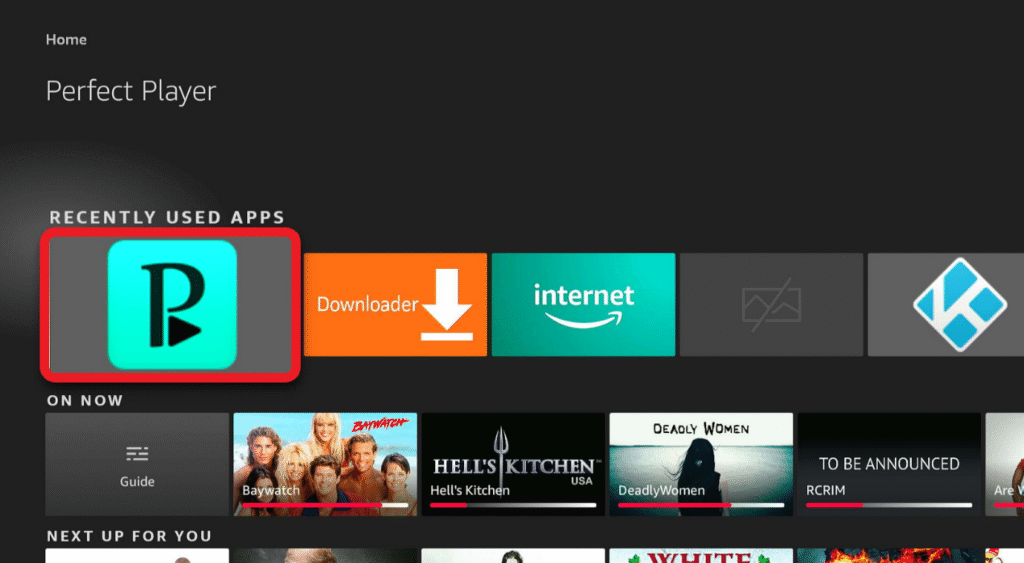
Step 5: Launch Perfect Player You can now launch it from the terminal:
wine ~/.wine/drive_c/Program\ Files\ \(x86\)/Perfect\ Player/PerfectPlayer.exeOr, more simply, find it in your application menu under “Wine → Programs → Perfect Player.”
Pro tip: Right-click Perfect Player in your menu and select “Add to Favorites” for quick access.
Source of Overwhelm #4: Adding IPTV Playlists and Configuration
Why it’s confusing: Perfect Player’s interface is minimal and doesn’t hold your hand. You’ve launched the application successfully, but you’re staring at a black screen with no obvious way to add your IPTV playlist. The settings are extensive, and you’re not sure what you need to configure versus what you can ignore.
The clear solution: Let’s get your IPTV playlist working with the minimum necessary configuration:
Step 1: Access settings Right-click anywhere in the Perfect Player window and select “Settings” (or press the gear icon).
Step 2: Add your playlist
- In the settings menu, go to “General” → “Playlists”
- Click the “+” button to add a new playlist
- Enter a name (like “My IPTV”)
- In the “Playlist URL” field, paste your M3U playlist URL from your IPTV provider
- Click “OK”
Step 3: Update the playlist
- Right-click in Perfect Player
- Select “Update playlists”
- Wait for it to load (this can take 30-60 seconds)
Step 4: Start watching Your channels should now appear in the channel list. Use the arrow keys to navigate, Enter to select a channel.
Essential settings to configure:
For better EPG (Electronic Program Guide):
- Settings → General → EPG
- Add your EPG URL (your IPTV provider should provide this)
- It usually looks like:
http://example.com/epg.xml.gz
For better playback:
- Settings → Decoder
- Make sure “Hardware acceleration” is enabled
- This prevents stuttering and reduces CPU usage
For easier navigation:
- Settings → Interface
- Enable “Show channel numbers”
- Enable “Show channel logos” (if your playlist includes them)
Don’t overthink it: These basic settings are all you need. Perfect Player has dozens of customization options, but you can explore those later once you’re comfortable with basic usage.
Source of Overwhelm #5: Performance Issues and Optimization
Why it’s confusing: Your streams are buffering, Perfect Player is using too much CPU, or the video quality is poor. You don’t know if it’s Wine’s overhead, your graphics drivers, your IPTV provider, or something you configured wrong.
The clear solution: Let’s systematically optimize performance:
Graphics drivers (critical for smooth playback): Ensure your graphics drivers are up to date:
sudo ubuntu-drivers autoinstallReboot after installing drivers. This single step solves 80% of performance issues.
Wine performance tweaks: Run Wine configuration:
winecfg- Go to the “Graphics” tab
- Check “Emulate a virtual desktop” (optional, but helps with window management)
- Set resolution to your screen size
- Click “Apply” and “OK”
Perfect Player decoder settings: In Perfect Player:
- Right-click → Settings → Decoder
- Set “Video decoder” to “Auto” (or try “DXVA2” if you have issues)
- Enable “Hardware acceleration”
- Set “Audio decoder” to “Auto”
Test your internet speed:
speedtest-cli(Install with sudo apt install speedtest-cli if needed)
Buffering issues are often your internet connection or IPTV provider’s server quality, not Perfect Player or Wine.
Memory management: If Perfect Player feels sluggish:
- Settings → General → Playlists
- Reduce “Cache size” if you have limited RAM
- Disable “Load all playlists on startup” if you have multiple large playlists
Alternative if Wine performance is poor: Consider native Linux IPTV players like:
- VLC (supports M3U playlists natively)
- Hypnotix (designed for Linux, very user-friendly)
- Kodi (powerful but heavier)
There’s no shame in choosing a native option if Wine doesn’t work well on your specific hardware.
Your Path Forward
Here’s the perspective shift I want you to have: You’re not fighting against Linux. You’re working with a Windows application that wasn’t designed for your platform, and you’re using an incredible compatibility layer (Wine) that bridges that gap. The fact that this works at all is actually remarkable.
Perfect Player running through Wine on Linux performs well for most users. You’ve learned something valuable here—how to run Windows applications on Linux when native alternatives don’t exist or don’t meet your needs. This knowledge extends far beyond Perfect Player; it’s a skill that opens doors to countless other applications.
But here’s the most important thing: if you’ve followed this guide and Wine isn’t giving you the performance you need, that’s okay. That’s not failure. That’s data. It tells you that for your specific hardware, workflow, and needs, a native Linux IPTV player might serve you better. VLC is already installed on most Linux systems and handles IPTV playlists beautifully. Hypnotix is specifically designed for Linux and IPTV. These aren’t compromises—they’re solutions optimized for your platform.
The goal isn’t to force Perfect Player to work at all costs. The goal is to watch your IPTV content smoothly and enjoyably. If Wine and Perfect Player accomplish that—fantastic. If a native alternative serves you better—equally fantastic.
You now understand Wine, you know how to install Windows applications on Linux, you can troubleshoot performance issues, and you can make informed decisions about what tools serve your needs best.
Open that terminal. Install Wine. Download Perfect Player. Follow these steps. In fifteen minutes, you’ll either have Perfect Player running smoothly, or you’ll have the clarity to choose a native alternative that works better for you.
Either outcome is a win. Either path is valid. The overwhelm is behind you. The clarity is here.
Embrace simplicity—whether that’s making Wine work or choosing the native tool. You’ve got this. Start streaming.