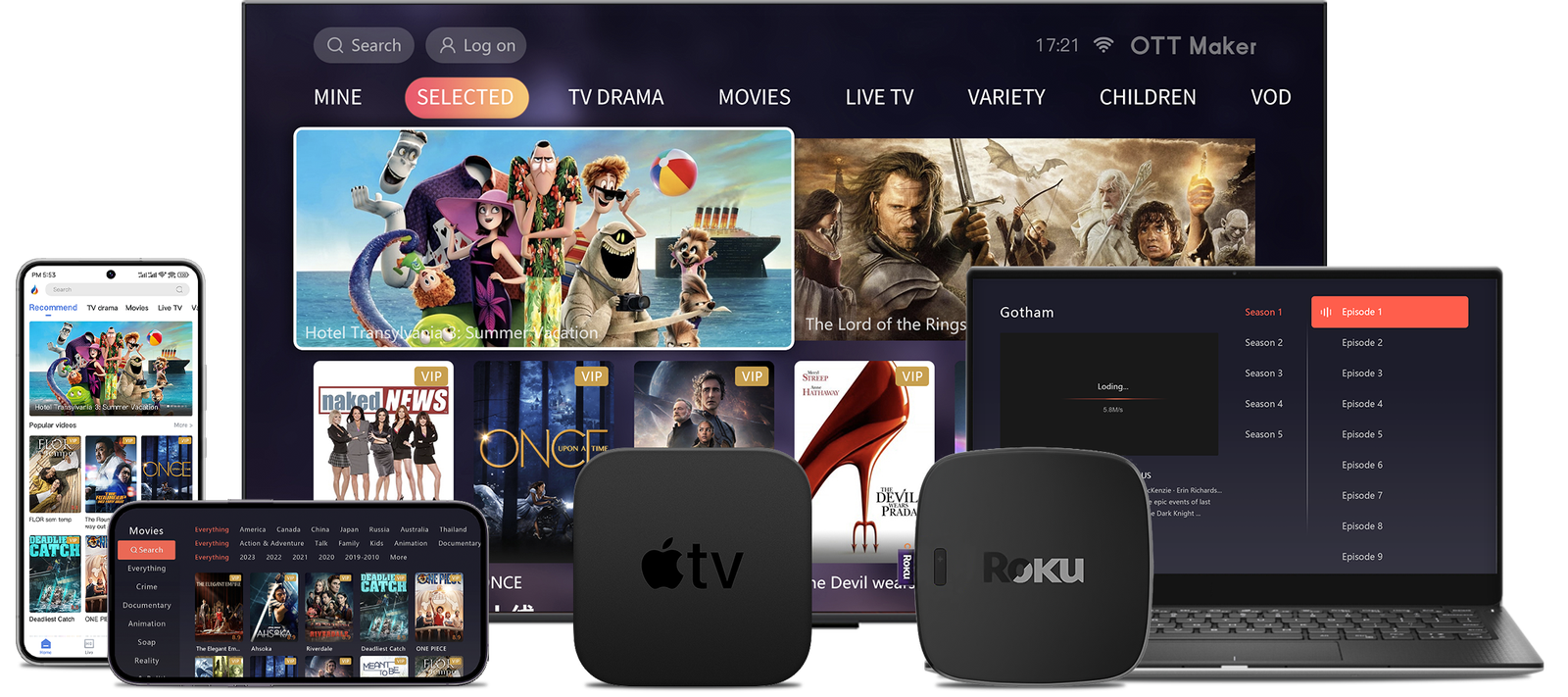
This short guide helps Canadian users move from the App Store search to first playback with minimal fuss. You’ll get clear steps, practical tips on playlist setup and quick notes about the app Apple prompts that can affect first use.
The ottplayer is an ad‑free IPTV player that uses your M3U or M3U8 playlists. You add lists via the web portal, then sign in on any supported device for instant sync. With a steady 10 Mbps+ connection, streams usually appear within 1–3 seconds thanks to efficient buffering and cloud playlist management.
This section previews what you will do next: search ottplayer in the store, create an account, and test a playlist for iOS-specific compatibility. We also cover legal basics in Canada and note why the clean interface and no‑ads approach make for a smooth streaming experience across smart tvs and mobile.
Key Takeaways
- The app is a player only; you must supply playlists and IPTV sources.
- Use the App Store search ottplayer flow and expect Apple prompts on first open.
- A stable internet connection and a valid playlist URL cut troubleshooting time.
- Account and web‑based playlist management keep content synced across devices.
- Learn more about choosing the right player with this helpful resource: how to choose the right OTT.
What OttPlayer is and why it works well on Apple devices
Designed for control and clarity, this player keeps playlists and channels in one tidy place. The app uses cloud playlist management, so users add a single URL on the website and every linked device pulls the same content. That central setup makes updates painless and reliable across Apple hardware and smart tvs.

“Simple, ad‑free playback puts your content first.”
Key features include support for M3U/M3U8 playlists and common streaming protocols like HLS, RTSP, TS over UDP, and RTMP. The lightweight interface pairs well with iOS performance and battery management, so navigation stays fast even with large channel lists.
The app has no built‑in channels — you must add your own playlist via the website. Typical setup is: create an account, add a playlist URL, then sign in on your device. For a deeper overview of capabilities and setup tips, see this concise ultimate guide to OttPlayer.
Before you start: requirements and what Canadians should know
Before you open the store, confirm a few basics that make streaming reliable in Canada.
App Store availability — The app is listed for iPhone and iPad in the Canadian App Store, though regional availability can change. Check the store first so you don’t waste time downloading an unsupported build.
Playlist and formats — Prepare an active M3U or M3U8 playlist URL. The player will not supply channels by itself, so a valid playlist is essential. If you have a file, upload it via the website before signing in.

Network and bandwidth — A steady internet connection prevents buffering. Aim for around 10 Mbps or higher on broadband or a strong Wi‑Fi link for best results.
Account and syncing — Create a free account at the official website and note your credentials. Users sign in on the device to sync playlists and manage assigned devices from the web dashboard.
“Prepare your playlist and credentials first — it saves time and reduces common playback issues.”
- Keep backups of playlists and label them for multi‑user households.
- Monitor cellular data when streaming live IPTV, as usage can be high.
- Confirm your playlist provider supports HLS or other iOS‑friendly protocols for a more stable connection.
How to install OttPlayer on iOS/iPhone/ iPad
Start by locating the official listing in the Canadian App Store so you can add the player to your device quickly.
Find and download from the App Store
Open the App Store, tap Search, and type “OttPlayer” to find the verified listing. Tap Get and wait for the download to finish.
Once downloaded, open app from your Home Screen and proceed to sign in with the account you created on the web portal.
First launch: privacy prompts and basic permissions
On first launch, iOS will show standard privacy prompts. Review any requests for networking or notification access and allow those needed for playback and alerts.
Note: The app does not include channels or ads; it pulls your playlists from the web dashboard after sign‑in.
- Confirm your Apple ID region is Canada if the listing does not appear.
- Keep App Store auto‑updates enabled for app apple performance and security fixes.
- If you use multiple devices, repeat this step on each device to sync playlists across hardware.
- Verify the developer name and description to avoid look‑alike listings.
“Sign in with the same web account so your playlists sync immediately and you can start streaming without extra setup.”
Add your IPTV playlist via the OttPlayer website
Manage playlists centrally so changes appear across every linked device. Log in at the ottplayer website with your account and open the Playlists area. This keeps channel lists tidy and easy to update from one dashboard.
Log in, open Playlists section, and add M3U URL or upload file
Click Add Playlist, give the entry a clear name, then paste a working url or upload an m3u file. Save the entry so the service validates links and parses channel groups.
Name, save, and assign playlist to your device
After saving, assign the playlist to your device so channels populate in the app on next sync. Confirm categories and rename the list if it helps navigation (for example, Sports or News).
- Quick steps: log account → Playlists → Add Playlist → name → paste URL or upload file → save → assign device.
- If a channel fails, check the provider link and format (HLS, RTSP, TS over UDP or RTMP) for compatibility.
- For multi‑room setups, assign the same playlist to smart tvs and mobile devices for consistent content.
“Centralized playlist management means edits on the website update every linked device instantly.”
For Android users or alternative downloads, see the official listing at Google Play or a step guide for Android here: Android setup guide.
Sync, open app, and start streaming
Sign in with the same credentials you used on the website and your assigned playlist will sync automatically. This is the key step after you log account changes online.
Sign in on your device to sync playlists
Open app and enter your credentials. The assigned playlist should appear within moments and channels will populate the main view.
If nothing shows, confirm the device is assigned to that playlist online and that the url is valid. Then pull to refresh or relaunch the app as a simple next step.
Navigating channels and categories for a smooth experience
Tap into categories to browse channels quickly. The minimal interface helps you move between channel groups without distractions.
“Use a descriptive name for each playlist so you can find it fast when managing multiple lists.”
- If a channel fails, test your internet connection and try another channel to isolate the issue.
- Follow a short troubleshooting step flow: refresh, test another channel, recheck the url, then sign out and back in.
- Remember that program guide features may vary by source; the app focuses on fast, stable streaming rather than heavy EPG tools.
Essential settings to optimize playback on iOS
Adjusting video quality and player behaviour can cut buffering and speed up channel changes. These tweaks match the app features to your network and make the interface feel snappier.
Video quality, player options, and connection tips
Set video quality to a level that fits your internet connection. Lower resolution or bitrate if Wi‑Fi is crowded.
Explore available player options for buffering and codec choices. Test a few channels after each change as a simple step to confirm improvement.
Managing multiple playlists and toggling between them
Keep playlists lean. Split an oversized m3u file into smaller entries so menus load faster and searches respond better.
Organize lists by category—sports, news, local—so the interface helps you find channels quickly.
| Setting | When to use | Expected benefit |
|---|---|---|
| Lower video quality | Slow internet or mobile data | Fewer stalls and faster start |
| Use 5 GHz Wi‑Fi | Close to router, many devices | Better throughput and stability |
| Split large playlist | 500+ channels | Quicker navigation and reduced lag |
“Match settings with your internet speed and keep playlists focused for the best streaming results.”
Safety, legality, and performance notes for 2025
OttPlayer is a neutral media player; it does not host or sell streams. Legal risk depends entirely on the source of your playlist and the licences held by that content provider. In Canada, you are responsible for using lawful streams and avoiding feeds that promise questionable access.
Install from official sources — always download the app from the Play Store, App Store or ottplayer’s site to avoid tampered builds and security problems. Official builds protect your device and personal data.
Performance often hinges on link health and playlist size. Dead entries cause buffering and timeouts more than app bugs.
- Keep playlists curated and smaller for faster navigation on smart tvs and mobile.
- Refresh or replace stale links regularly; periodic checks cut troubleshooting time.
- Use strong home Wi‑Fi, 5 GHz where possible, and wired backhaul for the router to improve connection.
- Test alternatives such as iptv smarters or iptv smarters pro if you need extra features, but always use legitimate content sources.
“Lean playlists and reliable links give the fastest playback; with a steady connection streams often start within 1–3 seconds.”
Program guide depth depends on your provider. Lean players like this one focus on playback rather than heavy EPG features. Avoid vendors that claim a single “one best” list full of questionable streams — reputable sources prioritise stability and clear licensing.
Conclusion
This short recap locks in the main setup: download the app from the store, create an account on the website, add a playlist, assign your device, and sign in to begin streaming.
Keep playlists tidy and refresh broken entries often. A clean list plus the right settings and a solid home network delivers the best viewing experience.
Account and device assignments control what appears in the app, so check the ottplayer website if channels go missing. If you try alternatives like iptv smarters pro, compare features and trust only lawful sources.
For a more detailed walkthrough, see this setup guide: complete guide. For Android steps, this short write‑up is helpful: Android guide.