You’ve discovered IPTV Extreme through recommendations on Reddit or IPTV forums—people praise its extensive features, customization options, and powerful playlist management. You’re running Linux, you’re eager to try it, and then you realize it’s an Android application with no desktop Linux version. The search results are sparse, the few guides you find assume you already understand Android emulation, and you’re starting to feel like you’re chasing something that might not even be possible. Your frustration is completely justified.
Here’s what nobody tells you clearly from the start: IPTV Extreme is exclusively an Android app, designed for Android phones, tablets, and TV boxes. There’s no official Linux version, no web player, and no Windows equivalent. But—and this is important—that doesn’t mean Linux users are locked out. It means we need to create an Android environment on your Linux system. Once you understand this fundamental reality and your actual options, the path forward becomes much clearer. Let’s navigate this together and find the solution that works for your needs.
Source of Overwhelm #1: Understanding IPTV Extreme’s Platform Reality
Why it’s confusing: When you search for IPTV Extreme, the results assume you’re on Android. There’s no mention of Linux anywhere in the official documentation, leaving you wondering if installation is even possible or if you’re wasting your time pursuing something unsupported.
The clear solution: Let’s establish what IPTV Extreme actually is and your realistic options:
What IPTV Extreme offers:
- Advanced Android IPTV player
- Extensive customization and skinning options
- Multiple playlist format support (M3U, XSPF, and more)
- Built-in EPG (Electronic Program Guide)
- Parental controls and favorites management
- Both free and Pro versions available
Official platforms:
- Android phones and tablets
- Android TV boxes
- Amazon Fire TV/Stick (Android-based)
- That’s it—nothing else is officially supported
Your Linux options:
- Anbox (Android in a Box) – Run Android apps natively on Linux
- Waydroid (Modern alternative to Anbox) – Better performance, newer Android version
- Native Linux alternatives – Purpose-built IPTV players for Linux
The key decision: Before investing time in Android emulation, ask yourself: Do you specifically need IPTV Extreme’s unique features, or do you just need a good IPTV player? If it’s the latter, native Linux options will serve you better with zero emulation overhead.
Source of Overwhelm #2: Setting Up Android Emulation with Anbox
Why it’s confusing: Anbox installation instructions vary wildly depending on your Linux distribution, kernel version, and system configuration. Guides throw around terms like “kernel modules,” “snap packages,” and “binder drivers” without explaining what they mean or why you need them.
The clear solution: Let’s install Anbox properly with clear expectations:
Compatibility check: Anbox works best on:
- Ubuntu 20.04 or newer
- Linux Mint 20 or newer
- Pop!_OS 20.04 or newer
- Other Ubuntu-based distributions
For Fedora, Arch, or other distributions, the process is more complex (but possible).
Step 1: Install required packages
sudo apt update
sudo apt install snapd
Step 2: Install kernel modules
sudo apt install linux-modules-extra-$(uname -r)This installs the kernel modules Anbox needs to function.
Step 3: Load the modules
sudo modprobe ashmem_linux
sudo modprobe binder_linux
Step 4: Make modules load automatically on boot
echo "ashmem_linux" | sudo tee -a /etc/modules
echo "binder_linux" | sudo tee -a /etc/modules
Step 5: Install Anbox
sudo snap install --devmode --beta anboxStep 6: Restart your system
This is critical—Anbox requires a fresh boot to initialize properly. Don’t skip this step.
Step 7: Verify Anbox is running
After rebooting, check if the Anbox service is active:
systemctl status snap.anbox.container-manager.serviceYou should see “active (running)” in green.
Troubleshooting if Anbox won’t start:
- Check kernel compatibility:
uname -r(you need a relatively recent kernel) - Verify modules are loaded:
lsmod | grep binder - Check Anbox logs:
journalctl -u snap.anbox.container-manager.service
Reality check: If Anbox fails to start or crashes repeatedly, your system may have compatibility issues. This isn’t failure—it’s information telling you that native alternatives are your better path.
Source of Overwhelm #3: Installing IPTV Extreme APK
Why it’s confusing: You need the Android APK file, but IPTV Extreme isn’t on Google Play’s website for direct download. You’re entering unfamiliar territory with APK repositories, trying to determine which sources are safe, and figuring out how to actually install an APK file into Anbox.
The clear solution: Let’s get IPTV Extreme installed safely:
Step 1: Install ADB (Android Debug Bridge)
sudo apt install android-tools-adbADB is the tool that lets you install apps into Anbox.
Step 2: Download IPTV Extreme APK
Visit a reputable APK repository:
- APKMirror.com (most trusted)
- APKPure.com (also reliable)
Search for “IPTV Extreme” and download the latest version. You’ll see both free and Pro versions—start with the free version to test.
Save the APK to your Downloads folder.
Step 3: Verify Anbox is running
Open “Anbox Application Manager” from your application menu. If it opens, Anbox is ready.
Step 4: Install the APK
Open your terminal and navigate to Downloads:
cd ~/DownloadsInstall IPTV Extreme (replace filename with your actual file):
adb install IPTV_Extreme_[version].apkWait for the “Success” message.
Step 5: Launch IPTV Extreme
Go to Anbox Application Manager, and you should see IPTV Extreme in your app list. Click to launch.
Common installation issues:
Issue: “adb: no devices/emulators found” Solution: Restart Anbox service:
sudo systemctl restart snap.anbox.container-manager.serviceIssue: App crashes immediately on launch Solution: IPTV Extreme might be compiled for ARM processors. Install ARM translation:
wget https://github.com/casualsnek/waydroid_script/raw/main/stuff/houdini.sh
sudo bash houdini.sh
Then reinstall the APK.
Issue: Installation fails with error Solution: Uninstall any previous version first:
adb uninstall com.pecana.iptvextremeThen try installing again.
Source of Overwhelm #4: Configuring Playlists and Settings
Why it’s confusing: IPTV Extreme has extensive configuration options—more than most other IPTV players. You’re overwhelmed by the settings menus, not sure what’s essential versus optional, and the interface designed for touchscreens feels awkward with keyboard and mouse in Anbox.
The clear solution: Let’s configure IPTV Extreme with the essentials:
First launch setup:
When you first open IPTV Extreme, you’ll see a welcome screen. Here’s what to do:
Step 1: Add your playlist
- Tap the menu icon (three lines, top-left)
- Select “Playlists”
- Tap the “+” button
- Choose your playlist source:
- “URL” – If you have an M3U URL from your provider
- “Xtreme Codes” – If your provider uses Xtreme Codes API
- “Local file” – If you downloaded an M3U file
Step 2: Enter playlist details
For M3U URL:
- Give it a name (e.g., “My IPTV Service”)
- Paste the M3U URL in the URL field
- Tap “OK”
For Xtreme Codes:
- Enter Server URL
- Enter Username
- Enter Password
- Tap “OK”
Step 3: Wait for playlist to load
IPTV Extreme will process your playlist. This can take 30-90 seconds depending on the number of channels.
Step 4: Configure EPG (Electronic Program Guide)
- Go to Settings (gear icon)
- Select “EPG”
- Enter your EPG URL (provided by your IPTV service)
- Set update frequency (daily is typical)
- Tap “Save”
Essential settings to optimize:
Player settings:
- Settings → Player → Hardware Acceleration: Enable
- Settings → Player → Buffer: Set to Medium or Large if you experience buffering
Interface settings:
- Settings → Interface → Show channel numbers: Enable
- Settings → Interface → Channel logos: Enable (if your playlist includes them)
Parental controls (optional): If you have children, set up PIN protection for adult channels.
Navigation tips in Anbox:
- Your mouse cursor acts as touch input
- Click and drag to scroll through channel lists
- Arrow keys work for basic navigation
- The interface wasn’t designed for desktop, so expect some awkwardness

Source of Overwhelm #5: Performance Realities and Decision Points
Why it’s confusing: You’ve invested time in setup, but IPTV Extreme feels laggy in Anbox, streams buffer, or you’re realizing the emulated environment adds noticeable overhead. You’re wondering if this is normal, if you did something wrong, or if there’s a better approach.
The clear solution: Let’s optimize what we can and make informed decisions:
Performance optimization steps:
Update graphics drivers:
sudo ubuntu-drivers autoinstallReboot after installation.
Enable hardware acceleration: In IPTV Extreme:
- Settings → Player → Hardware decoder: Enable
- Settings → Player → Decoder type: Try “Auto” first, then “Hardware” if issues persist
Close unnecessary applications: Anbox + video streaming is resource-intensive. Close browser tabs and other apps while streaming.
Monitor system resources: Open System Monitor and watch CPU/RAM usage. If either maxes out constantly, your hardware may struggle with emulation overhead.
Test your internet connection:
speedtest-cli(Install with sudo apt install speedtest-cli)
Required speeds:
- SD: 5+ Mbps
- HD: 10+ Mbps
- 4K: 25+ Mbps
The honest performance assessment:
Running IPTV Extreme through Anbox on Linux:
- Works best on: Modern hardware (4+ cores, 8+ GB RAM, dedicated GPU)
- Performance overhead: 20-40% more CPU/RAM usage vs native apps
- Stability: Can vary—some users have zero issues, others face crashes
- Touch interface: Awkward with mouse/keyboard
When IPTV Extreme via Anbox makes sense:
- You specifically need its advanced features (multiple playlists, extensive customization)
- Your hardware is powerful enough
- You’re already familiar with IPTV Extreme from Android devices
- You’re comfortable troubleshooting occasional issues
When native alternatives make more sense:
- You want optimal performance
- You prefer keyboard/mouse-optimized interfaces
- You value stability over specific features
- You want simpler maintenance
The Superior Alternative: Native Linux IPTV Players
Let me be direct: Unless you absolutely need IPTV Extreme’s specific features, native Linux IPTV players offer better experiences:
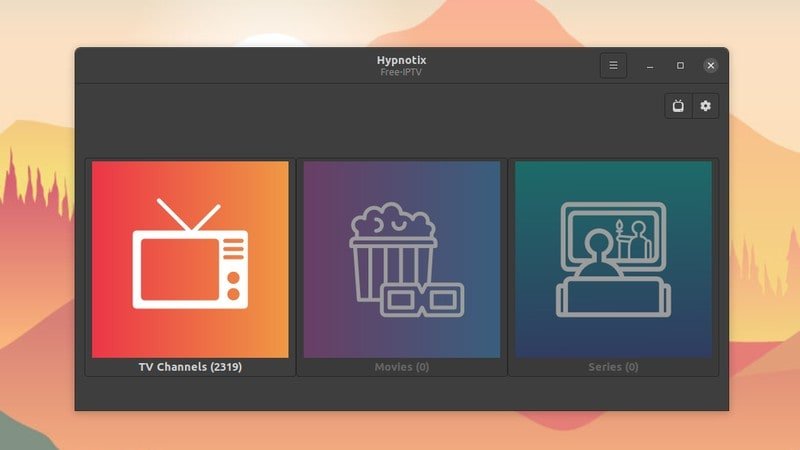
Hypnotix (Recommended):
sudo apt install hypnotix- Beautiful interface designed for Linux
- Full EPG support
- Multiple playlist management
- Xtreme Codes API support
- Free and open-source
- Zero emulation overhead
Kodi with IPTV Simple Client:
sudo apt install kodi- Professional media center
- Excellent IPTV integration
- Recording capabilities
- Extensive customization
- Large community support
VLC Media Player:
sudo apt install vlc- Already installed on most systems
- Simple M3U playlist support
- Rock-solid stability
- Minimal resources
FreetuxTV:
sudo apt install freetuxtv- Dedicated Linux IPTV player
- Lightweight
- Good channel organization
These aren’t fallbacks—they’re purpose-built for Linux and often superior to emulated Android apps.