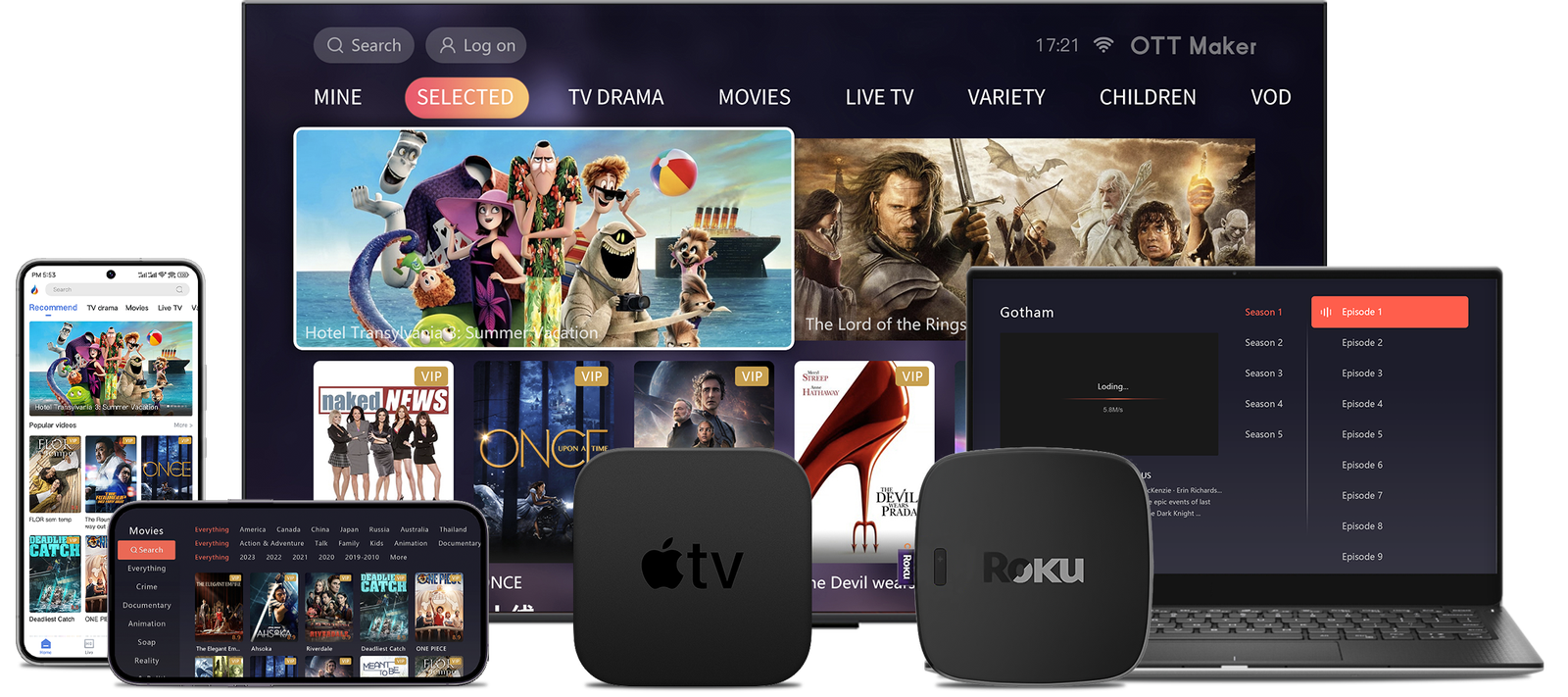
Stream and mirror video and music from your handheld device to a bigger display with a simple setup. This guide explains how a Mac or Windows computer becomes an Apple AirPlay receiver that handles 4K UHD content and records mirrored screens.
Begin by downloading the free player for Mac or Windows, then run the installer and launch the app. Open DLNA/AirPlay settings in the main UI and enable the AirPlay service. If the service does not start, follow the prompt to add Apple Bonjour.
On your phone or tablet, open Control Centre (swipe down from the top right in newer releases or swipe up on older releases), tap Screen Mirroring, and pick your computer from the list. Name the receiver clearly so it is easy to find among devices on a Canadian home network.
Why users choose this way: no plugins, malware checks completed, and the app supports screen mirroring, audio recording and big‑screen display for presentations or lessons.
Need extra setup notes? Check the official AirPlay receiver page or a step guide for alternate devices.
Official AirPlay receiver page and a practical walkthrough for other devices: Android setup guide.
Key Takeaways
- Turn a Mac or Windows computer into an Apple AirPlay receiver for video and music streaming.
- Download the free player, enable AirPlay in the app, and install Apple Bonjour if prompted.
- Use Control Centre on the device for Screen Mirroring and choose the named computer.
- Record mirrored screens with the red Record icon for local video and audio files.
- Connect the receiving computer to HDMI or VGA for projector presentations in classrooms or offices.
What you’ll achieve with 5KPlayer on iOS/iPadOS today
Mirror your device screen to a Mac or Windows desktop and enjoy movies, music and games on a bigger, sharper display. This makes group viewing, lessons and presentations simpler across homes and classrooms in Canada.
Stream videos and airplay video music without losing quality. The app handles 4K output to compatible monitors and keeps audio in sync for films and Apple Music playlists.

Use the one‑click Record button to capture mirrored sessions with audio. Record tutorials, gameplay or meetings fast, then save or share the files.
- Mirror an iphone ipad screen to a computer for bigger viewing and clearer sound.
- Share movies, third‑party apps and live streams while preserving full quality.
- Present documents and slides to a projector via your desktop for professional delivery.
- Rename the receiver in DLNA/AirPlay settings so your device stands out in Control Centre.
Want details on AirPlay setup and receiver options? See the AirPlay receiver guide for step‑by‑step instructions and tips.
Requirements and compatibility for iPhone, iPad and Mac/Windows
Confirm your Apple device and desktop are ready so casting video and music starts without delay. This short checklist covers supported models, network needs and safe downloads for a smooth setup in Canada.
Supported models and Apple AirPlay basics
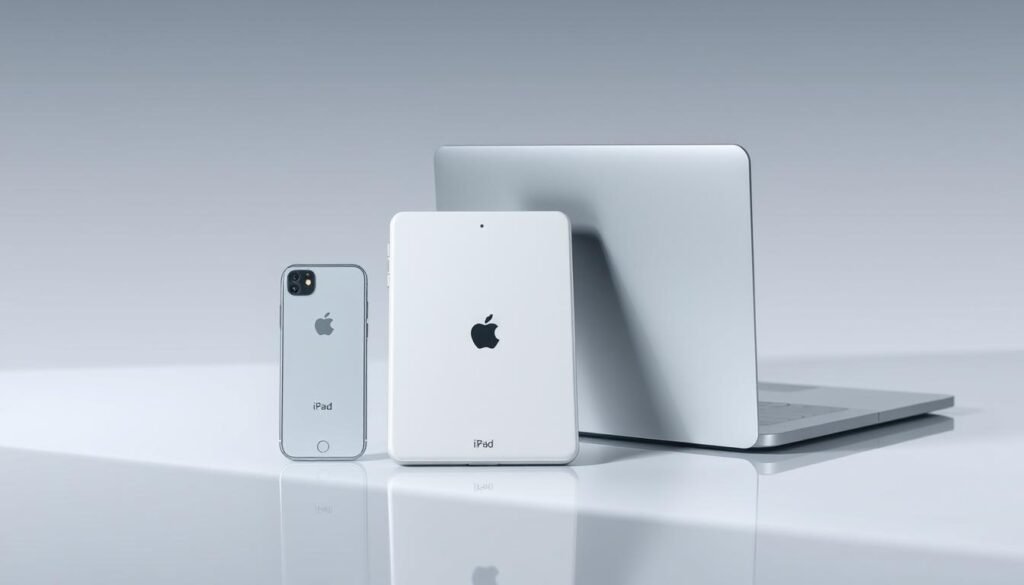
Supported devices include iPhone 12/12 mini/12 Pro/12 Pro Max, iPhone 11 series, iPhone SE, XS/XS Max, XR, X and earlier models, plus iPad models running iOS/iPadOS.
These devices can use Apple AirPlay to stream video and music to a desktop running the player. Enable the AirPlay service in the app so the computer becomes discoverable.
Same Wi‑Fi network for seamless screen mirroring
Place the handheld and the Mac or Windows computer on the same Wi‑Fi network. Use a 5 GHz SSID for lower latency and better video quality when possible.
Free downloads for Mac and Windows, no plugins or malware
The player is free to download for both Mac and Windows and needs no external plugins. If AirPlay won’t start, follow the prompt to add Apple Bonjour.
- Keep both devices current and connected to the same router.
- Enable DLNA/AirPlay in the player’s settings after launch.
- For meeting rooms, confirm network discovery (Bonjour/mDNS) is allowed.
“Using the right network and an updated desktop makes streaming videos and music simple and reliable.”
| Device | OS | Note |
|---|---|---|
| iPhone 12 / 11 / SE / XS / X | iOS / iPadOS | AirPlay compatible for video and audio |
| iPad models | iPadOS | Best with 5 GHz Wi‑Fi for mirroring |
| Mac / Windows computer | macOS / Windows | Download free player; enable Bonjour if prompted |
How to install 5KPlayer on ios/iPhone/ iPad
Get devices ready and follow a clear setup path so screen mirroring and AirPlay video streaming start without fuss.
Prepare your device: Verify Control Centre access. Swipe down from the top‑right corner on iOS/iPadOS 13+ or swipe up from the bottom on older releases. This ensures Screen Mirroring appears when you need it.
Mac setup: Download the player DMG, open it, drag the app into Applications and launch. Click the DLNA/AirPlay button in the main UI to open AirPlay settings. Toggle the AirPlay service on and give the computer a clear receiver name you will recognise in Control Centre.
Windows setup: Run the player installer, open the app and enable AirPlay in DLNA/AirPlay settings. If the service does not activate, use the in‑app prompt to download and add Apple Bonjour, then relaunch the player and retry.
First‑run tips: Keep the player running in the foreground during the initial test. Confirm the handheld and the computer share the same Wi‑Fi network. Open Control Centre, tap Screen Mirroring and select the named receiver to begin streaming video and music.
| Step | Mac | Windows |
|---|---|---|
| Download | Open .dmg, drag to Applications | Run installer .exe |
| Enable AirPlay | DLNA/AirPlay > toggle on; name receiver | DLNA/AirPlay > enable; install Bonjour if prompted |
| First test | Keep app active; use Control Centre to mirror | Relaunch after Bonjour; ensure same Wi‑Fi |
Set up AirPlay video, music, and screen mirroring from iPhone/iPad
Open Control Centre and use Screen Mirroring to send your device display straight to your computer. On iPad and newer iPhone releases (iOS/iPadOS 13+) swipe down from the top right. On older releases swipe up from the bottom.
Open Control Centre and tap Screen Mirroring
Tap Screen Mirroring and wait for available receivers to appear. Look for the computer name you set in the player’s DLNA/AirPlay settings.
Choose your receiver to stream videos, music, games and apps
- Pick your computer’s receiver name and start playback. Video and music from native apps or third‑party services will appear on the desktop display.
- On‑screen controls remain on your handset while the full image shows on the external display. This works well for sharing a game or a presentation.
- Adjust volume from your device or the computer speakers. AirPlay forwards audio during mirroring.
How to stop mirroring and switch between devices
Tap Stop Mirroring in Control Centre to end the session. To switch receivers, stop mirroring, then select another AirPlay target such as Apple TV or a different computer.
For group viewings or meetings in Canada, name the receiver clearly so it’s easy to find.
Record your iPhone/iPad screen, stream via DLNA, and play any format
Capture mirrored sessions with both video and audio using the red Record icon in the player. Click once to start recording and click again to stop. Files save automatically in the AirRecord library for quick access.
Use this for tutorials, game clips, or meeting recaps. Record directly to your computer to keep storage free on your handset. Recorded files support MP4 and MP3 playback and handle 4K footage for crisp presentations.
DLNA makes media flexible. Send files from your computer to smart TVs, PS4/Xbox, or receive streams from Android phones. Combine AirPlay mirroring with DLNA to bridge Apple and non‑Apple devices in a mixed setup.
- Start/stop recording during any mirroring session; find clips in AirRecord.
- Trim and make simple edits in the app before sharing.
- Play common formats without extra codecs and stream videos across devices.
| Feature | Support | Benefit |
|---|---|---|
| Recording | AirRecord (desktop) | Save iphone ipad screen video with audio |
| DLNA streaming | Smart TVs / PS4 / Xbox / Android | Share video music dlna across devices |
| Formats | MP4 / MP3 / 4K / DVD | Play and edit common formats without extra codecs |
For Android pairing tips and related setup notes see the Android step guide.
Troubleshooting: common install and mirroring issues in Canada
Quick fixes can restore streaming and mirroring in minutes. Try these checks when video or music won’t appear on your computer display, or when the connection drops during a presentation.
AirPlay toggle missing? Enable the player service and add Bonjour
If the computer does not show in Control Centre, open the DLNA/AirPlay settings in the player and make sure the AirPlay service is toggled on.
If AirPlay still won’t activate, use the in‑app download prompt to install Apple Bonjour. Restart the player, then toggle AirPlay on again.
Connection drops: verify Wi‑Fi, firewall and device names
Keep your iphone ipad and mac windows computer on the same Wi‑Fi SSID. Guest networks often block Bonjour/mDNS and stop discovery.
On Windows, allow the player through the firewall so inbound AirPlay traffic is not blocked. Rename the receiver in the app to avoid selecting the wrong device if multiple targets appear.
Quality and latency: 4K displays, projector setup and audio sync
For better quality on 4K displays, close heavy background apps and keep the player active during playback. Connect the HDMI/VGA cable to your computer before starting mirroring for smooth projector output.
If audio drifts during long sessions, stop mirroring via Control Centre and reconnect. Updating the device OS and the player often fixes sync and performance issues.
- Move both devices closer to the router or switch to 5 GHz to reduce drops.
- Record problematic sessions in MP4/MP3 if you need a backup of the video or audio stream.
- Contact support if problems persist — include device model, OS version and a brief reproduction of the issue.
Conclusion
,Wrap up your setup by confirming the receiver name, Wi‑Fi link and a short test stream to the computer display.
5KPlayer is a free, malware‑free AirPlay receiver for Mac and Windows that mirrors iOS/iPadOS content, supports 4K output and records mirrored sessions in MP4/MP3. Use the DLNA features to expand playback across other devices and formats.
For reliable screen mirroring, keep both devices on the same network, install Bonjour if prompted, and name the receiver so it stands out in Control Centre. If issues arise, revisit firewall and Wi‑Fi checks from the troubleshooting section.
Ready to stream? Download free the player for Mac or Windows, enable AirPlay and start streaming video and music in minutes.