You’ve heard about Smart IPTV from fellow IPTV users—how stable it is, how easy the interface, how it “just works” on Smart TVs. You’re running Linux, you want that same smooth experience, and now you’re discovering that Smart IPTV isn’t designed for desktop Linux at all. Every guide you find focuses on Samsung TVs, LG TVs, or Android devices. The few Linux mentions lead to dead ends, confusing workarounds, or people telling you to “just get a Fire Stick.” Your frustration is completely valid.
Here’s the reality nobody wants to tell you up front: Smart IPTV was built primarily for Smart TV platforms, with Android as a secondary option. There’s no official Linux desktop application, and the developers show no signs of creating one. But—and this is crucial—that doesn’t mean you’re out of options. It just means we need to understand what Smart IPTV actually offers and find the path that works best for your Linux setup. Let’s cut through the confusion and get you to a solution that actually makes sense.
Source of Overwhelm #1: Understanding What Smart IPTV Actually Offers
Why it’s confusing: Searches for “Smart IPTV” return a confusing mix of results—Smart TV activation codes, Android APK downloads, subscription information, and mentions of a web player that may or may not still exist. Nobody clearly explains which platforms are officially supported and what options Linux users realistically have.
The clear solution: Let’s map the Smart IPTV ecosystem clearly:
Official Smart IPTV platforms:
- Samsung Smart TVs (Tizen OS)
- LG Smart TVs (webOS)
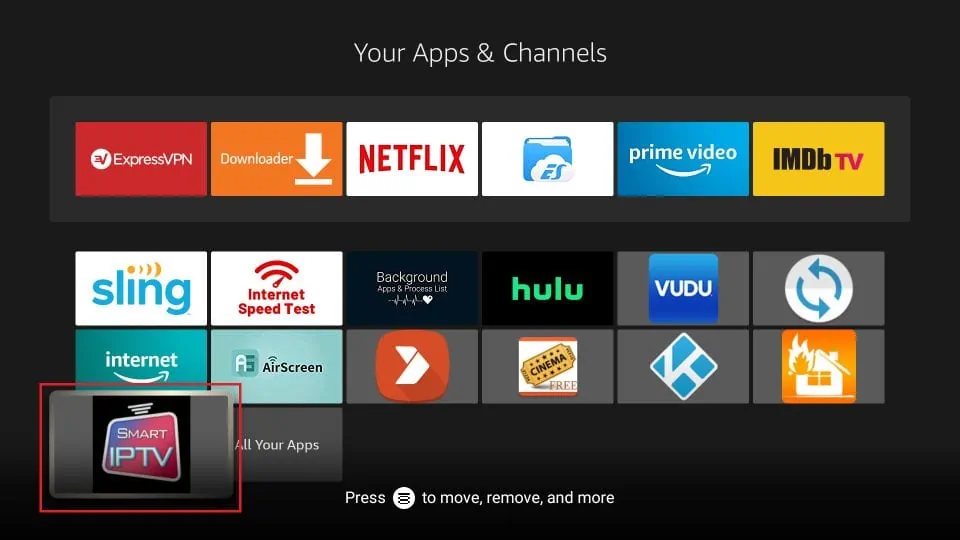
- Android TV and mobile devices
- Amazon Fire TV/Stick
- MAG boxes
What Smart IPTV offers: Smart IPTV is a paid service (one-time activation fee per device) that provides an IPTV player interface. You pay for the player software, then add your own IPTV provider’s playlist.
Your Linux options:
- Android emulation – Run the Android version through Anbox
- Web player access – If available (status varies)
- Native alternatives – Linux IPTV players with similar functionality
The key insight: Smart IPTV’s subscription model (pay per device) makes it less ideal for Linux compared to free native options that offer comparable or better features. Before investing time in complex workarounds, consider whether native Linux IPTV players might serve you better without the activation fees.
Source of Overwhelm #2: The Activation and Payment System
Why it’s confusing: Smart IPTV requires device activation with a MAC address-based licensing system. Guides explain how this works for TVs and Android boxes, but nobody clarifies how it works (or if it works) with emulated Android environments on Linux. You’re worried about paying for an activation that might not work on your setup.
The clear solution: Let’s understand the activation process and its Linux implications:
How Smart IPTV activation works:
- Install Smart IPTV on your device
- Launch it to get your device’s MAC address
- Visit siptv.eu/activation and pay the activation fee (around €5-7 for lifetime)
- Enter the MAC address to activate
- The app becomes fully functional on that device
The Linux complication: When running Smart IPTV through Anbox (Android emulation), the MAC address is generated by the virtual Android environment, not your physical hardware. This works, but:
- If you reinstall Anbox or reset your Android container, the MAC address changes
- You’d need to pay for reactivation with the new MAC address
- Customer support for emulated environments is limited or nonexistent
The honest recommendation: Before paying for Smart IPTV activation:
- Try the free trial (usually 7 days) in Anbox first
- Verify it works stably on your system
- Document your MAC address for future reference
- Understand you might need to repurchase if you reinstall
Alternative consideration: Free native Linux IPTV players eliminate this activation complexity entirely. No payment, no MAC address headaches, no licensing concerns.
Source of Overwhelm #3: Installing via Android Emulation
Why it’s confusing: If you decide to proceed with Smart IPTV on Linux, you’ll need Anbox for Android emulation. The installation process involves kernel modules, snap packages, and compatibility considerations that most guides gloss over or assume you understand.
The clear solution: Let’s install Anbox and Smart IPTV step-by-step:
Step 1: Install Anbox prerequisites
Check if Snap is installed:
snap --versionIf not, install it:
sudo apt update
sudo apt install snapd
Install kernel modules:
sudo apt install linux-modules-extra-$(uname -r)Load required modules:
sudo modprobe ashmem_linux
sudo modprobe binder_linux
Step 2: Install Anbox
sudo snap install --devmode --beta anboxStep 3: Restart your system This is essential—Anbox needs a fresh boot to work properly.
Step 4: Install ADB (Android Debug Bridge)
sudo apt install android-tools-adbStep 5: Download Smart IPTV APK Visit a trusted APK repository like APKMirror.com or APKPure.com Search for “Smart IPTV” Download the latest version to your Downloads folder
Step 6: Install Smart IPTV into Anbox
cd ~/Downloads
adb install siptv_[version].apk
Replace [version] with your actual filename.
Step 7: Launch Smart IPTV Open Anbox Application Manager and find Smart IPTV in your app list.
Step 8: Note your MAC address When Smart IPTV launches, it displays a MAC address. Write this down—you’ll need it for activation.
Compatibility note: If Smart IPTV crashes immediately, you may need ARM translation:
wget https://github.com/casualsnek/waydroid_script/raw/main/stuff/houdini.sh
sudo bash houdini.sh
Then reinstall the APK.
Source of Overwhelm #4: Adding Playlists and Configuration
Why it’s confusing: Smart IPTV’s interface is designed for TV remote controls, not keyboard and mouse navigation. Running it through Anbox adds another layer of awkwardness, and you’re not sure how to efficiently add your IPTV playlist or navigate the settings.
The clear solution: Let’s configure Smart IPTV properly in the emulated environment:
Adding your M3U playlist:
Method 1: Direct URL entry
- Launch Smart IPTV in Anbox
- Click “Settings” (gear icon)
- Select “Add Playlist”
- Choose “M3U URL”
- Enter your IPTV provider’s M3U URL
- Click “OK”
- Wait for the playlist to load
Method 2: Upload via Smart IPTV website
- Visit siptv.eu/mylist
- Log in with your MAC address (displayed in the app)
- Upload your M3U file or paste the URL
- The playlist syncs to your device automatically
Method 2 is recommended because it’s easier to type URLs on your computer’s browser than navigating Anbox’s touch interface with a mouse.
EPG (Electronic Program Guide) setup:
- In Smart IPTV settings, go to “EPG Settings”
- Enter your EPG URL (provided by your IPTV service)
- Usually looks like:
http://example.com/epg.xml.gz - Set update frequency (daily is typical)
Navigation tips for Anbox:
- Your mouse cursor acts as a finger tap
- Click and drag to scroll
- Use arrow keys for navigation where possible
- The interface wasn’t designed for desktop, so expect some awkwardness
Source of Overwhelm #5: Performance and Practicality Reality Check
Why it’s confusing: You’ve invested time setting everything up, but streams buffer, the interface lags, or you’re realizing the whole setup feels like more trouble than it’s worth. You’re wondering if you did something wrong or if this approach is fundamentally flawed for Linux users.
The clear solution: Let’s optimize what we can and discuss realistic alternatives:
Optimization steps:
Update graphics drivers:
sudo ubuntu-drivers autoinstallReboot after installation.
Enable hardware acceleration: In Smart IPTV settings (if available):
- Look for “Hardware Acceleration” or “Video Decoder” settings
- Enable hardware decoding
- Choose “Auto” or “Hardware” decoder
Check system resources: Open System Monitor and watch CPU/RAM usage while streaming. Anbox + video streaming is resource-intensive.
Test your connection:
speedtest-cli(Install with sudo apt install speedtest-cli)
You need minimum 10 Mbps for HD streaming.
The honest assessment:
Running Smart IPTV through Anbox on Linux:
- Pros: You get the actual Smart IPTV interface and features
- Cons: Performance overhead, activation costs, awkward navigation, potential instability
When Smart IPTV via Anbox makes sense:
- You’re already familiar with Smart IPTV from other devices
- You specifically need features unique to Smart IPTV
- Your hardware is powerful enough to handle the emulation overhead
- You’re comfortable with the activation fee and potential MAC address issues
When native alternatives make more sense:
- You want optimal performance
- You prefer free, open-source solutions
- You value keyboard/mouse-optimized interfaces
- You want something designed for Linux
The Better Path: Native Linux IPTV Alternatives
Let me be direct with you: unless you have a compelling reason to use Smart IPTV specifically, native Linux IPTV players offer superior experiences:
Hypnotix (Recommended for most users):
sudo apt install hypnotix- Beautiful, modern interface designed for Linux
- Free and open-source
- Supports M3U playlists and Xtreme Codes
- Built-in EPG support
- Zero activation fees
- Keyboard and mouse optimized
Kodi with IPTV Simple Client:
sudo apt install kodi- Powerful media center
- Excellent IPTV support through add-ons
- Highly customizable
- Large community support
- Works identically to Smart TV versions
VLC Media Player:
sudo apt install vlc- Already installed on most systems
- Media → Open Network Stream → Enter M3U URL
- Rock-solid stability
- Minimal resource usage
- Not designed specifically for IPTV but handles it well
FreetuxTV:
sudo apt install freetuxtv- Dedicated IPTV player for Linux
- Simple interface
- Good EPG support
- Lightweight
These aren’t compromises—they’re purpose-built for Linux and often outperform emulated solutions.