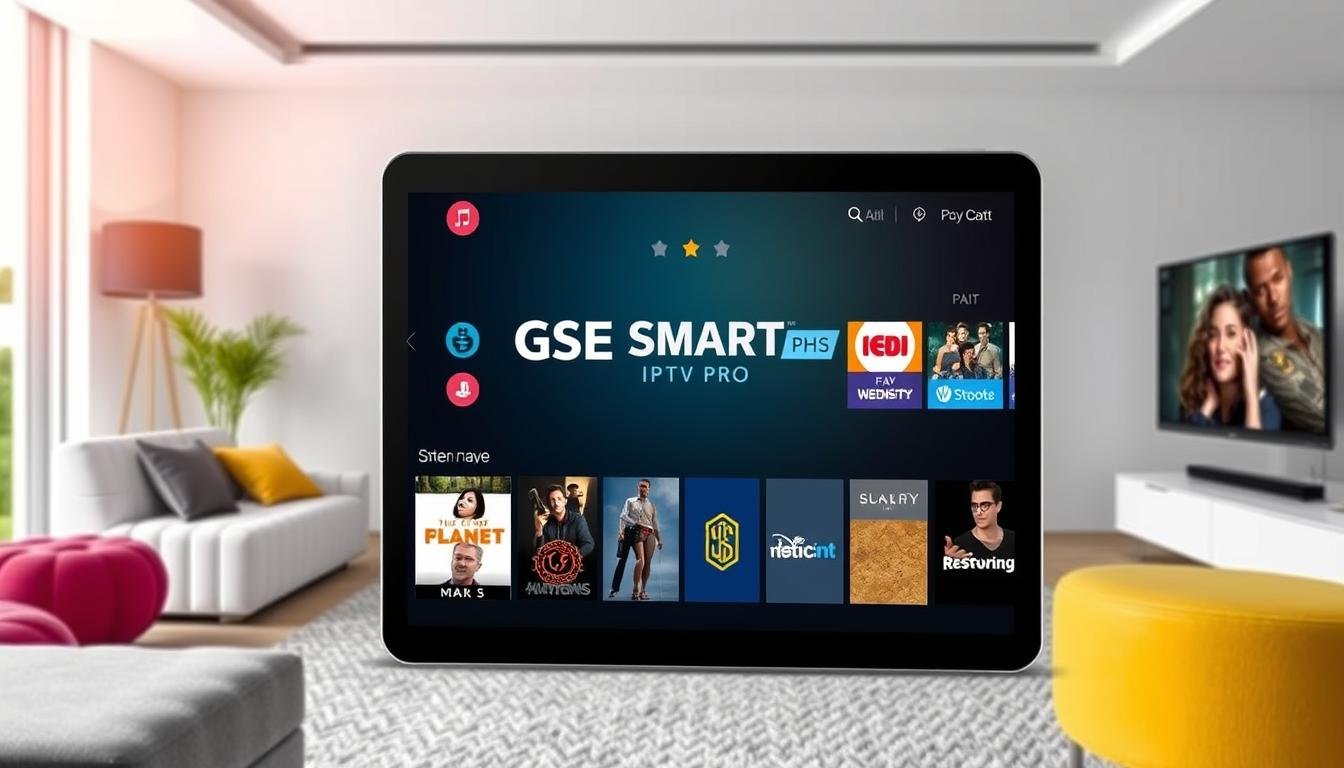
You’re here because you’ve hit yet another wall. GSE Smart IPTV keeps appearing in “best IPTV player” lists—praised for its intuitive interface, robust features, and reliable streaming. You’re running Linux, you’re ready to dive in, and then you discover the harsh reality: it’s an iOS and Android app with no Linux version in sight. The few forum posts you’ve found mention emulators and workarounds, but they’re either outdated, incomplete, or written by people who assume you already know what they’re talking about.
Your frustration is completely understandable. GSE Smart IPTV is genuinely excellent software, but its developers focus exclusively on mobile platforms. This leaves Linux users in a frustrating limbo—you want the features GSE offers, but nobody’s providing a clear roadmap for getting there. The good news? You have workable options, and once we cut through the confusion, your path forward becomes remarkably clear. Let’s navigate this together and find the solution that actually works for you.
Source of Overwhelm #1: Understanding the GSE Smart IPTV Landscape
Why it’s confusing: When you search for GSE Smart IPTV on Linux, you’ll find scattered information about Android emulators, vague mentions of compatibility issues, and people suggesting you “just use your phone” as if that’s helpful. Nobody clearly explains what GSE Smart IPTV actually is, which versions exist, or what’s realistically possible on Linux.
The clear solution: Let’s establish the facts first. GSE Smart IPTV exists in two versions:
- GSE Smart IPTV (iOS version – iPhone/iPad)
- GSE Smart IPTV Pro (Android version)
Neither has a native Linux version, which means your realistic options are:
Option 1: Android Emulation via Anbox (Complex but doable) Run the Android version on Linux using Anbox, which creates an Android container on your system.
Option 2: Web-based alternatives (Simplest) Use web-based IPTV players that offer similar functionality without installation hassles.
Option 3: Native Linux IPTV players (Most practical) Use Linux-native applications that provide comparable or superior features.
The honest assessment: Running GSE Smart IPTV through Android emulation is technically possible but requires significant setup and may have performance limitations. For most users, exploring native Linux alternatives delivers a better experience with less hassle.
Before we dive into the complex installation, let’s be transparent: if your goal is simply “watch IPTV on Linux with a good interface,” you might be better served by native options we’ll discuss. But if you specifically need GSE Smart IPTV’s features, we’ll get you there.
Source of Overwhelm #2: Installing Anbox for Android Apps
Why it’s confusing: Anbox isn’t a simple one-click install. Guides mention kernel modules, snap packages, compatibility issues with different Linux distributions, and troubleshooting steps that assume deep Linux knowledge. You’re worried about breaking something or getting halfway through only to discover your system isn’t compatible.
The clear solution: Let’s install Anbox properly with clear expectations about what works:
Compatibility check first: Anbox works best on:
- Ubuntu 20.04 or newer
- Linux Mint 20 or newer
- Other Ubuntu-based distributions
It’s more challenging on Fedora, Arch, or other non-Ubuntu systems (though possible with additional steps).
Step 1: Check if you have Snap
snap --versionIf you see version information, great. If not:
sudo apt update
sudo apt install snapd
Step 2: Install required kernel modules
sudo apt install linux-modules-extra-$(uname -r)Step 3: Load the required modules
sudo modprobe ashmem_linux
sudo modprobe binder_linux
Step 4: Install Anbox
sudo snap install --devmode --beta anboxStep 5: Restart your system This is crucial. Anbox needs a fresh boot to initialize properly.
Step 6: Launch Anbox After rebooting, find “Anbox Application Manager” in your application menu.
Reality check: If Anbox doesn’t launch or crashes immediately, your system may have compatibility issues. This isn’t failure—it’s valuable information telling you that native alternatives are your better path forward.
Source of Overwhelm #3: Getting GSE Smart IPTV APK and Installing It
Why it’s confusing: You need the Android APK file, but GSE Smart IPTV isn’t on Google Play’s website for direct download. You’re entering the world of APK repositories, trying to determine which sources are trustworthy, and then figuring out how to actually install an APK file into Anbox.
The clear solution: Let’s get the APK safely and install it:
Step 1: Install ADB (Android Debug Bridge)
sudo apt install android-tools-adbADB is the tool that lets you communicate with Anbox and install apps.
Step 2: Download GSE Smart IPTV APK Visit a reputable APK repository:
- APKMirror.com (most trusted)
- APKPure.com (also reliable)
Search for “GSE Smart IPTV Pro” and download the latest version. Save it to your Downloads folder.
Step 3: Start Anbox Make sure Anbox is running (open Anbox Application Manager).
Step 4: Install the APK Open your terminal and navigate to Downloads:
cd ~/DownloadsInstall the APK (replace the filename with your actual file):
adb install GSE_SMART_IPTV_Pro_8.5.apkWait for the “Success” message.
Step 5: Launch GSE Smart IPTV Open Anbox Application Manager, and you should see GSE Smart IPTV in your app list. Click it to launch.
Troubleshooting common issues:
If ADB can’t connect:
adb devicesIf no devices appear, restart Anbox and try again.
If the app crashes on launch: GSE Smart IPTV may be compiled for ARM processors (like phones use) rather than x86 (like your computer uses). You’ll need a translation layer:
wget https://github.com/casualsnek/waydroid_script/raw/main/stuff/houdini.sh
sudo bash houdini.sh
This installs libhoudini, which helps ARM apps run on x86 systems. Then reinstall the APK.
Source of Overwhelm #4: Configuring GSE Smart IPTV and Adding Playlists
Why it’s confusing: You’ve successfully installed GSE Smart IPTV in Anbox, but the interface is designed for touchscreens, not keyboard and mouse. Navigation feels awkward, and you’re not sure how to properly add your IPTV playlist or configure settings in this emulated environment.
The clear solution: Let’s optimize the experience:
Working with the touch interface:
- Your mouse acts as a finger—click and drag to scroll
- Right-click doesn’t work like you expect; use left-click for everything
- The keyboard works for text input when fields are active
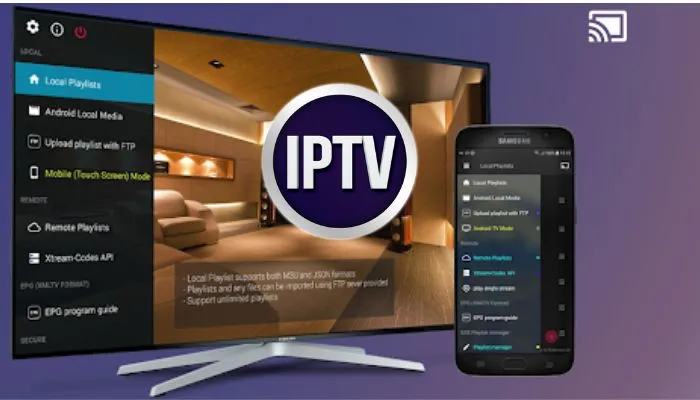
Adding your M3U playlist:
Step 1: Launch GSE Smart IPTV in Anbox
Step 2: Click the “+” button (usually top-right corner)
Step 3: Select “M3U URL” or “Xtreme Codes API” depending on what your provider gave you
Step 4: Enter your details:
- For M3U: Paste your playlist URL
- For Xtreme Codes: Enter server URL, username, and password
Step 5: Give it a name and save
Step 6: Wait for the playlist to load (30-60 seconds)
Performance optimization: In GSE Smart IPTV settings:
- Enable hardware acceleration if available
- Reduce buffer size if you experience lag
- Disable auto-play if it causes issues
Making it more usable: Consider connecting a wireless keyboard/mouse or even a game controller if Anbox supports it. The touch interface works better with more touch-like input methods.
Source of Overwhelm #5: The Performance Reality Check
Why it’s confusing: You’ve done everything right, but GSE Smart IPTV in Anbox is laggy, streams buffer constantly, or the app crashes unexpectedly. You’re wondering if you did something wrong, if your hardware is insufficient, or if this whole approach is fundamentally flawed.
The clear solution: Let’s talk honestly about expectations:
The reality of Android emulation on Linux:
- Anbox adds overhead—you’re running Android apps on Linux, which requires system resources
- Video streaming already demands performance; adding emulation layers compounds this
- Not all Android apps work perfectly in Anbox
- Your experience varies significantly based on your hardware
Optimization steps to try:
Update graphics drivers:
sudo ubuntu-drivers autoinstallReboot after installation.
Close other applications: Give Anbox maximum resources by closing unnecessary programs.
Check your internet speed:
speedtest-cli(Install with sudo apt install speedtest-cli if needed)
You need at least 10 Mbps for smooth HD streaming.
Test with different streams: If some channels work perfectly and others buffer, it’s your IPTV provider’s server quality, not your setup.
The honest recommendation: If you’ve tried these optimizations and GSE Smart IPTV still performs poorly in Anbox, it’s time to embrace native Linux alternatives. This isn’t failure—it’s smart decision-making.
The Better Alternative: Native Linux IPTV Players
Let me be direct: if you’ve struggled with the Anbox approach, these native Linux options offer superior experiences:
Hypnotix (Easiest, most user-friendly):
sudo apt install hypnotix- Beautiful interface
- Designed specifically for Linux and IPTV
- Supports M3U playlists and Xtreme Codes
- EPG support built-in
- Zero setup complexity
VLC Media Player (Already installed on most systems):
- Media → Open Network Stream → Paste M3U URL
- Rock-solid stability
- Minimal resource usage
- Not as pretty, but supremely functional
Kodi with IPTV Simple Client:
- Feature-rich media center
- Excellent IPTV support
- Highly customizable
- More setup required but very capable
These aren’t consolation prizes—they’re genuinely excellent IPTV solutions optimized for Linux.