This guide explains, in clear steps, how Canadians can set up Smarters Pro as a compliant media player on Apple devices.
Smarters Pro is a standalone media player that supports M3U and JSON playlists. It does not host or sell content and is available in the App Store.
You must add legally acquired media or a valid subscription from your provider. The developer states the app does not collect user data.
This short walkthrough covers first launch, accepting terms, using Add User, and placing the app icon on your Home Screen for quick access.
We will also note differences between Lite and Pro, common troubleshooting for Apple devices, and simple tips for smooth streaming on Canadian networks.
Key Takeaways
- Smarters Pro acts only as a player; it requires user-supplied content or subscription credentials.
- The app is available from the App Store and offers a simple interface and high-quality playback.
- Prepare your provider credentials (Xtream Codes API or M3U) before first launch.
- Follow the Add User flow and add an app icon for fast access on your device.
- Use reliable Canadian networks and check player settings for better EPG and parental controls.
Why use Smarters Pro as your IPTV player on iOS in the present day
A modern IPTV management interface gives clear navigation, fast login paths, and support for common playlist formats.
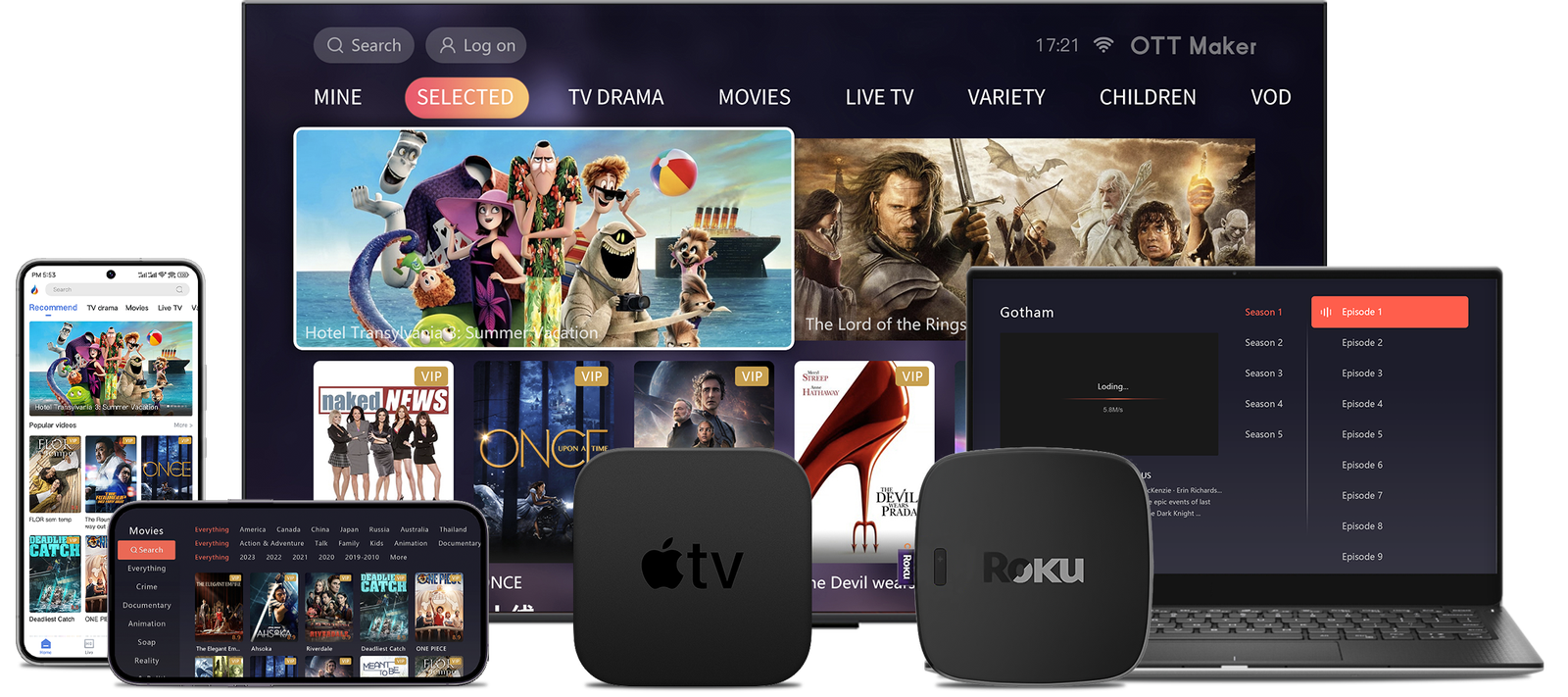
iptv smarters supports M3U and JSON playlists and is free on the App Store. It does not host channels; instead, it serves as a centralized media player that renders content you legally supply.
The app organizes multiple subscriptions in one place. That reduces app clutter and speeds access for households using both phones and tablets.
Built-in support for xtream codes and M3U often brings automatic EPG when your provider includes it. This produces familiar Live TV, Movies, Series, and Catch Up sections for smooth streaming.
| Feature | Benefit | Notes |
|---|---|---|
| Playlist formats | Supports M3U, JSON | Flexible provider options |
| Multi-account | Single interface for subscriptions | Less app switching |
| EPG support | Automatic when provided | Better channel guides |
- Legal clarity: the app requires your provider credentials and does not sell content.
- Fast step from login to playback with a clean iOS layout.
What you need before you start
Prepare a few essentials so the setup runs smoothly. Confirm you have an active iptv subscription from a reputable provider. The player will only log into services you already pay for; it does not supply channels itself.
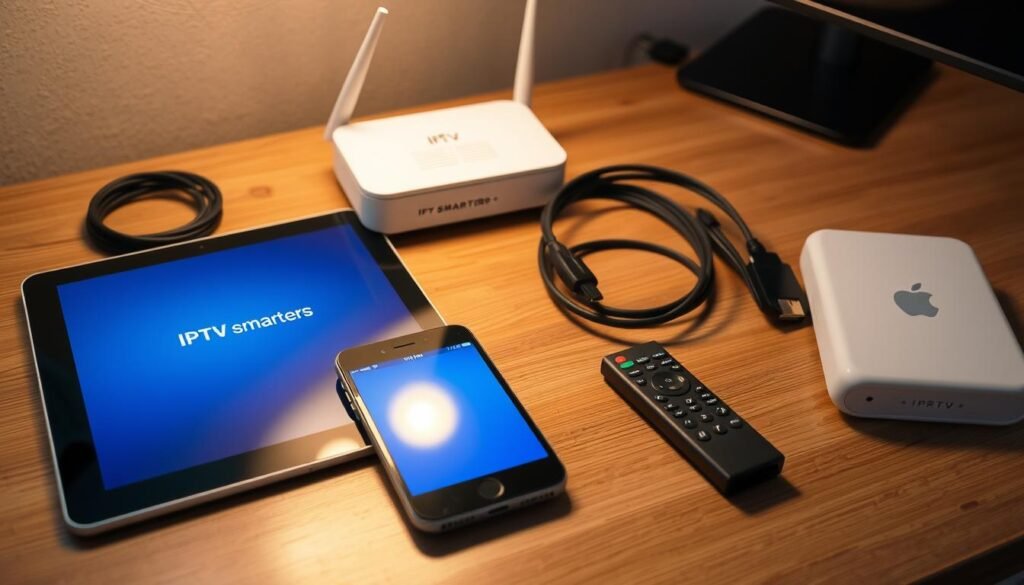
Account details and credentials
- Confirm your provider sent a username, password, and server or portal url if they use xtream codes.
- If the provider uses playlists, get the m3u playlist link or the exact m3u url.
- Check for special port numbers in the server URL and copy them exactly.
- Keep credentials private; many providers limit simultaneous connections.
Which format to choose
When both options exist, use the codes api (login xtream) for easier entry and automatic EPG. Keep the M3U playlist as a fallback if parsing issues occur.
“Have your provider credentials ready before the first step; accurate URLs mean fewer errors and faster channel loading.”
| Item | Needed data | Why it matters |
|---|---|---|
| Xtream Codes | Username, password, server/portal URL | Auto EPG and simpler login |
| M3U playlist | M3U playlist link or M3U URL | Direct playlist load; good fallback |
| Device & network | Updated OS and stable internet | Prevents playback and parsing errors |
With credentials, a valid URL, and a stable connection, you are ready for the next step in the iptv smarters app setup.
Install Smarters Pro from the App Store on iPhone and iPad
Begin at the App Store home screen, type “Smarters Pro” in search, and you’ll find the verified app listing ready for download. The app is free to get; you’ll see the official entry with developer details and user reviews that confirm authenticity.
Find the app: search “Smarters Pro” on the App Store
Open the App Store and search for the exact name. Confirm the developer information so you avoid copycat listings and fake entries.
Install and add the Smarters icon to your home screen
Tap Get or Install and wait for the download to finish. Press the app icon and move it to your home screen for quick access.
Understanding Lite vs Pro availability on iOS
Users report slightly different behaviour between Lite and Pro on tablets, such as landscape mode and channel name display. Pro is the actively updated listing and is recommended for current features and fixes.
- After this step, the app will not populate channels automatically; you must add your playlist or Xtream Codes credentials using your provider url.
- Keep your Apple ID signed in so the app receives updates and bug fixes.
- If the listing does not appear, check region settings and device compatibility in Settings.
First launch: permissions, terms, and initial setup
On first launch you’ll see the Terms of Use on a central screen. Read the text and accept the agreement to move forward. The app then asks for a few permissions such as network access and file use when you load local playlists.
Tap Allow when permission prompts appear. Granting these rights helps the player fetch guides and read playlist files without interruption. If you deny permissions, some features may not work and you may need to reopen the app to grant them.
Accept Terms of Use and allow necessary permissions
Open app, accept terms, and allow the permissions requested. This single step clears the way for account setup and playback features.
Tap Add User to begin linking your service
Find the Add User button on the main screen and tap it. You’ll see options like Login with Xtream Codes API or Load Your Playlist or File/URL.
- Have your provider credentials ready before you press ahead; this reduces errors.
- You can repeat the add user flow and create multiple profiles for different subscriptions.
- Remember the app contains no channels; it needs a valid service credential to show content.
| Action | What you’ll see | Why it matters |
|---|---|---|
| Accept Terms | Terms of Use screen | Required to proceed to the dashboard |
| Allow permissions | Network / File prompts | Enables playlist load and EPG access |
| Add User | Xtream Codes or File/URL | Links your provider and populates the home screen |
“Once terms are accepted and permissions granted, you’re set to link your first account.”
After this step you’ll land on the home screen with Live TV, Movies, Series, Catch Up, and Settings. If you exit by mistake, simply reopen the app and continue where you left off. When you’re set, proceed with the next step in linking your service or see the provider terms at Terms and Conditions.
How to install IPTV Smarters on ios/iPhone/ iPad
Choose the login method that matches your provider and prepare credentials before you begin.
Option A — Login with Xtream Codes API (recommended)
Pick Login with Xtream Codes API, give the profile a clear name, then enter the Server/Portal URL, username, and password exactly as your provider sent them.
The codes api method often auto-loads EPG and requires fewer keystrokes on mobile. Include any port number in the URL to avoid connection errors.
Option B — Load your playlist by File/URL
Select Load Your Playlist or File/URL, add a profile name, and paste the M3U playlist link or the M3U URL from your provider.
You can also use a local file URL or a playlist file url if iOS can access it.
- Tap the Add User button to begin syncing. The app will fetch Live TV, Movies, Series, and EPG from your active iptv subscription.
- Repeat the process for additional services; switching between profiles is supported by iptv smarters and iptv smarters pro.
- If login xtream fails, confirm each URL and credential with your provider or try the m3u playlist route as a fallback.
| Method | Required fields | Benefit |
|---|---|---|
| Login with Xtream Codes API | Name, Server/Portal URL, Username, Password | Auto EPG, faster setup |
| Load Playlist / File URL | Playlist name, M3U URL or file URL | Good fallback; direct playlist load |
| Multiple Profiles | Separate names per provider | Easy switching between subscriptions |
Open the app and start streaming your channels
When the service finishes loading you’ll see a tidy home screen with Live TV, Movies, Series and Catch Up tiles. This dashboard is where the player lists the channels and guides provided by your subscription.
Navigating the main view
Open the app and scan the top-level categories. Tap Live TV for channel groups such as News, Sports, or Kids.
Choose a channel and begin playback
Select a group, then pick a channel to play. The stream opens promptly; tap the video area to enter full-screen mode for an immersive view.
Player controls and basic tips
Use on-screen controls to pause, resume, or exit full-screen. Explore audio and subtitle options if your provider supplies them.
- If playback fails, verify your url and credentials from Add User, or reload the category.
- Use the user switcher to change profiles when you manage multiple subscriptions.
- Mark favourite channels in the app for faster access in busy lineups.
Note: The smarters app only displays what your iptv service supplies. If a channel is missing or won’t play, confirm with your provider rather than assuming a device fault.
EPG, playlists, and settings to customise your experience
Customize guide sync, player choices, and profiles so the app fits your household.
Automatic EPG often loads when you sign in via the codes api. If your iptv service includes guide data, the smarters app will fetch schedules without extra steps.
If the EPG looks incomplete, refresh the guide or re-sync the profile. Confirm with your provider that EPG is part of your plan before troubleshooting further.
Manage multiple playlists and users
Add separate profiles for different providers or family members. Label each user clearly so playlists do not get mixed during quick switches.
Key settings to tweak
- Choose your preferred player in Settings to improve playback and reduce buffering.
- Adjust display options for subtitles, channel icons, and list layout to suit smaller or larger screens.
- Enable parental controls to restrict categories or specific channels for shared devices in Canada.
“If a setting causes playback issues, revert to the default player and test streams before contacting support.”
| Feature | Action | Why it matters |
|---|---|---|
| EPG via codes api | Sign in with xtream codes or codes api | Saves time; auto loads guide when provided by your iptv service |
| Multiple profiles | Create separate users and names | Makes switching providers and troubleshooting simpler |
| Player & display | Pick player, tweak layout and subtitles | Improves playback stability and viewing comfort |
Final step: keep the m3u playlist url current and watch for app updates. The iptv smarters pro app only displays content from your configured services, so contact your provider if channels or EPG are missing.
Troubleshooting common iOS and iPad issues
If streams fail or menus look incomplete, a few quick checks usually clear the problem. Follow these steps before contacting support or your provider.
Playlist parsing loops or content not loading
Check the URL for typos and confirm your subscription is active. Force‑close the app and reopen it; that often breaks a parsing loop.
If the loop remains, re-add the user profile to clear cached data. Test a different stream to see if the issue is one channel or widespread.
Channel names or icons not displaying
Missing names often come from provider playlist formatting. Ask your provider to supply standard names and logos if you only see icons or categories.
Screen orientation and landscape notes
Some tablet users report limited landscape browsing in Pro. Use full‑screen playback for landscape until an app update improves navigation.
When to refresh or contact your provider
- Refresh EPG or re‑sync the profile for outdated guides.
- Ensure iOS and the app are up to date; bug fixes help parsing and display.
- If problems continue, contact your provider with examples and timestamps so they can check the portal and playlist format.
| Issue | Quick fix | When to contact provider |
|---|---|---|
| Parsing loop | Verify url, force close, re-add profile | If loop persists after re-add |
| Missing channel names | Confirm playlist formatting | If icons only after provider update |
| Landscape limits | Use full‑screen playback | If browsing still restricted after update |
“The developer confirms the app does not collect user data.”
Safety, legality, and privacy for IPTV in Canada
Before linking any service, understand what the app provides and what it does not.
Smarters Pro is a media player only and hosts no content
Smarters Pro functions strictly as a media player. It is listed on major app stores and does not host, sell, or promote media content or an iptv service.
That means you must add legally acquired content from a verified provider. If channels are missing or streams fail, raise the issue with your service—not the developer.
Use only verified, legal services and respect copyright
- Legal risk: In Canada, streaming copyrighted material without proper licensing can have consequences. Always choose lawful providers.
- Review your provider’s terms to confirm they hold rights for the content they offer.
- Protect privacy: keep credentials private and use reputable services to reduce account sharing and fraud.
- Install only the official app and keep your device updated to avoid malicious clones or unsafe setups.
- If an offer seems too good—such as very low costs for premium shows—it likely indicates an unauthorized service.
“Respecting copyright supports creators and helps maintain stable, high‑quality streaming options in the Canadian market.”
Reminder: the developer states the app does not collect user data. Still, practise good privacy hygiene with strong passwords and secure networks. When unsure about legality, prefer public‑domain or officially licensed content and consult your provider’s documentation.
Smarters Pro vs Smarters Lite on iOS
Device size and menu layout will shape which version fits your daily viewing. Read this short comparison before you pick a build for your phone or tablet.
Key differences in interface, search, and channel display
The Lite build earned praise for a simple, text‑forward layout that shows channel names under icons. That makes quick scanning easy on larger screens.
By contrast, smarters pro uses a modern, icon‑centric design and focuses search around categories. Some users report limited landscape browsing across menus on tablets, though full‑screen playback is landscape.
Choosing the version that fits your phone or tablet
If you prefer straightforward lists and landscape menus, the Lite option may serve you best. If you want a refreshed look and active updates, pro is compelling.
- Both are media players and neither supplies content; app availability is managed via the App Store.
- Check provider playlist structure — that affects how channels and icons appear.
- Test both and compare which screen layout helps you find channels faster.
| Area | Lite | Pro |
|---|---|---|
| Navigation | Text lists, simple | Icon-led, category search |
| Tablet behaviour | Better landscape menus | Partial landscape; full-screen video only |
| Updates | Stable, minimal | Actively updated |
“Try both versions and check App Store notes for recent fixes before you commit.”
For a quick test, try the Lite player from the App Store listing and compare which step in your workflow feels faster.
Tips for smooth streaming and better playback
Consistent playlist upkeep and a stable connection make the biggest difference in daily streaming.
Start by preferring the xtream codes api when your provider supports it. Xtream codes logins are typically brief and often auto-load EPG, which reduces manual steps and speeds access to guide data.
Keep your playlist links current
Keep any m3u or m3u playlist url updated. Expired or moved links break playback until you update the m3u url. If you load playlist file options, store a backup of the playlist file or file url so you can restore profiles quickly after device changes.
Optimize network and device settings
Use a stable 5 GHz Wi‑Fi network or wired Ethernet via an adapter where possible. Close background apps that steal bandwidth and keep the app plus your device OS updated.
- If a channel buffers, switch the player in settings or try a different stream category and choose channel alternatives.
- Reduce home network congestion by pausing large downloads during playback peaks.
- Refresh EPG and playlists periodically so the iptv service changes reflect in the app.
- If issues persist across entries, contact your provider to confirm portal url validity and current playlists.
| Action | Why it matters | Quick result |
|---|---|---|
| Use codes api (login xtream codes) | Auto EPG, simpler login | Faster guide and fewer manual edits |
| Update m3u / playlist file | Prevents broken streams | Stable playback after updates |
| Improve network | Reduces buffering and lag | Smoother Live TV, Movies, Series |
After you’ve made these adjustments, you’re set to choose channel lines with fewer interruptions and enjoy more consistent streaming across Live TV, Movies, and Series.
Conclusion
Wrap up by confirming each profile, refreshing the guide, and testing a live channel. The iptv smarters pro app is free in the App Store but it needs your provider credentials via xtream codes or an m3u playlist link.
As a final step, add a user, paste the exact url or playlist link, and enter login details. Once linked, the player will load Live TV, Movies, Series and EPG when available.
Remember: this app is a media player and does not host content. Keep credentials secure, label profiles for multiple services, and refresh playlists if channels or guides go offline for a smooth viewing experience.