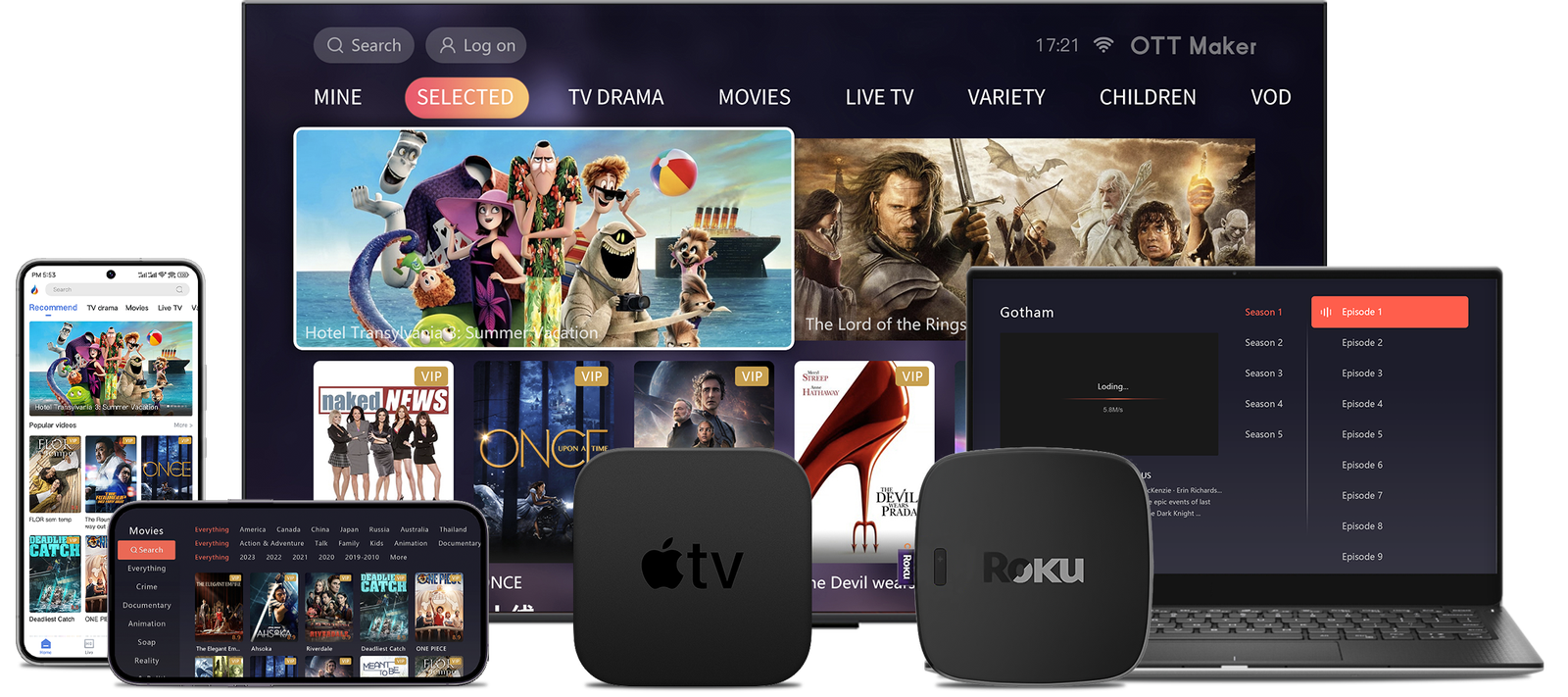
Perfect Player is an IPTV client that reads M3U and XSPF playlists and integrates XMLTV/JTV EPG data. It runs on Android, Fire TV (via sideload) and Windows, but it does not provide channels or content directly. Users must add licensed IPTV sources from a reputable service to stream legally in Canada.
This short guide explains why Apple mobile devices need a different approach for setup, and what alternatives mirror the same feature set. You’ll learn about decoder choices, buffer tuning and external player links that improve playback and the overall streaming experience.
We also cover practical checks for missing channels, stale guides and audio issues, plus privacy notes on when a VPN may help against ISP throttling. The goal is a safe, reliable workflow across devices that keeps your setup lawful and stable.
Key Takeaways
- Perfect Player is a playlist-based IPTV client; it needs licensed M3U and EPG inputs.
- Apple mobile devices require alternate methods or apps to match feature parity.
- Adjust decoder mode and buffer settings for smoother playback.
- Use reputable IPTV services and respect Canadian content rules.
- Troubleshoot with simple checks: refresh guides, test external players, review network.
Before You Start: What Perfect Player Is, What It Isn’t, and Current Availability
Clarify the role: this client is a front-end that reads IPTV feeds and guide files. It does not include channels or act as a subscription service. Users must supply an M3U or XSPF playlist and an XMLTV/JTV EPG URL for listings.
Platform support and access
The app installs easily on Android from Google Play or the play store listing. You can sideload it on Fire TV devices and run it on Windows from a trusted download.
iOS status and alternatives
There is no official iOS release today. iPhone and iPad users should pick apps that accept the same playlist and guide formats, such as GSE Smart IPTV or IPTV Smarters.
Legality and reliable sourcing in Canada
Important: legality depends on the provider. Choose licensed IPTV services for stable streams, accurate EPG data and lawful access. Licensed sources also reduce the risk of takedowns, shared-credential limits, and poor uptime.
- Supported formats: M3U/XSPF playlists and XMLTV/JTV EPG.
- EPG accuracy varies by provider; refresh if guides go stale.
- Keep provider URLs and credentials secure to protect your access.
How to install Perfect Player on ios/iPhone/ iPad
Reality check: there is no official perfect player listing in the App Store. Apple devices require a compatible client that accepts remote playlists and guide feeds.
Safe alternatives for Apple devices
GSE Smart IPTV and IPTV Smarters are reliable choices. Both apps let you add a provided iptv m3u url and an epg url so channels and guide data appear.
Step‑by‑step on Apple mobile hardware
Install the chosen app from the App Store. Open its Remote Playlists or playlist section and paste your full m3u url, then save.
Add the epg url in the app’s guide or EPG settings. Enable playlist refresh on launch in settings so updates appear automatically.
“Verify credentials and URL values if streams fail, then restart the app.”
| App | Remote Playlist | EPG Support | Notes |
|---|---|---|---|
| GSE Smart IPTV | Yes | XMLTV/JTV | Good for single device use |
| IPTV Smarters | Yes | XMLTV/JTV | Cleaner UI, multi‑stream capable |
| Cross‑platform tip | Reuse URLs | Works in Perfect Player | Keep lists lean for speed |
If you later move to Android or Fire TV, reuse the same M3U and EPG URLs for a consistent player setup. For Android guidance, see set iptv.
Set Up Your IPTV Sources: Enter M3U Playlist and EPG URL in the app
Start by registering your playlist and EPG entries so channels and program data appear correctly. This step links your provider feeds with the player and enables the electronic program guide.
Open the app and tap the gear icon
Tap the gear icon to reach Settings. Navigate to General, where you manage both playlist and guide inputs.
Enter M3U URL: add your playlist for channels
Go to Settings > General > Playlist and paste the exact m3u url from your provider. Give the list a clear name if you use multiple sources.
Add EPG URL: XMLTV/JTV guide data for an electronic program guide
Return to General > EPG and enter the epg url. Supported guide formats include XMLTV and JTV, which populate now/next listings and timelines.
Tune playback: decoder, buffer and stability
Use playback options to switch hardware versus software decoding. Hardware is efficient on modern devices; software can fix odd audio or sync issues.
“If a playlist or guide fails, confirm the URL, relaunch the app, or clear the EPG cache.”
- Verify playlists are M3U or XSPF and guides are XMLTV/JTV.
- Increase buffer slightly for smoother playback, but avoid very large buffers.
- Integrate an external player like VLC when audio or codec issues persist.
- Keep a secure backup of URLs so you can restore settings quickly.
Privacy and Performance: Using a VPN and avoiding throttling in Canada
A secure VPN can keep your viewing habits private while improving consistency on congested networks. It encrypts traffic, which helps protect users from ISP profiling and reduces cases of video shaping during busy periods.
When a VPN helps: privacy, geo-blocks, and ISP throttling
Encryption hides stream metadata and can prevent your provider from throttling video packages. In Canada, routing through a nearby high-speed server often stabilizes playback for live feeds and reduces buffering.
If a channel is region-locked, test an appropriate regional server while watching latency. Remember that a VPN does not legalize unlicensed content; always use licensed service access.
Best practices: choose high-speed, no-logs VPN servers close to you
- Pick reputable no-logs providers such as NordVPN, ExpressVPN, or CyberGhost for strong throughput and device support.
- Prefer servers physically close to your location to lower latency and keep the player responsive.
- Use modern protocols like WireGuard or current OpenVPN builds for better speed on most devices and routers.
- Avoid free VPNs that throttle bandwidth or log activity; they harm streaming experience and privacy.
- If an app misbehaves with a VPN active, try a different protocol, switch servers, or use split tunnelling for streaming traffic only.
“Keep VPN clients up to date and confirm router compatibility for the best streaming experience.”
For a concise comparison of options, see the best VPN options for IPTV that balance speed, privacy, and ease of use in Canada.
Troubleshooting: Fix playlists, EPG, audio, and app stability
A quick troubleshooting checklist can save time when playlists, guides, or audio act up. Start with simple checks in settings and network connectivity before deeper changes.
Playlist not loading
Verify the exact url for typos and paste it again. Test Internet access and restart the app.
Use settings to clear cache and force a fresh playlist import. If channels still fail, contact your service for feed status.
EPG missing or incorrect
Confirm the xmltv jtv link is correct and matches the provider’s guide url. Clear the EPG cache under settings, then relaunch the app.
No sound or stutter
Switch decoder modes in playback options or lower stream resolution. Try an external player if certain channel streams use unusual codecs.
Crashes and freezes
Update the app and the device OS. Reduce buffer size, reboot the device, or reinstall if corruption persists.
“Keep a text copy of your M3U and EPG urls so you can quickly re-enter them after a reinstall.”
- Check individual stream links for retired feeds when one channel fails.
- Test playback on another device to isolate local device limits.
- Update provider details before changing player options.
Alternatives and Cross‑Device Options: Getting a similar experience
A single workflow across phones, TVs and sticks makes playlist management faster and less error-prone.
Android route: On an android device open the Google Play Store, search perfect player, install perfect player and then add your m3u playlist and EPG under Settings > General. This gives the same channel and guide layout used on other platforms.
Fire TV and sticks: Enable Apps from Unknown Sources and ADB debugging in system settings. Use Downloader to fetch a trusted APK and perform a careful download install before configuring playlists and guides.
Other robust player choices
TiviMate suits Android TV and Google TV with a richer EPG and advanced channel management.
IPTV Smarters is cross-platform and user-friendly, matching well with iOS alternatives and multi‑playlist logins.
OTT Navigator excels at organising large m3u playlist libraries and complex channel groupings on set‑top devices.
“Keep a text copy of your playlist and EPG entries for quick onboarding when you add a new device.”
- Windows users can run a desktop build and reuse the same feed URLs for consistency.
- Standardize on one player UI across household devices to simplify support and training.
- If the play store listing is region‑restricted, consider a reputable APK source and verify checksums before a download install.
- Keep firmware updated and confirm sufficient storage to avoid failed installs or app instability.
Conclusion
Before you finish, confirm your provider links and tweak basic settings so streams stay stable on each device.
Perfect Player remains a leading player for playlist and epg handling across Android, Fire TV (sideload) and Windows. It gives advanced tuning and reliable channel layouts when users supply a licensed iptv service.
For Apple mobile users, pick a compatible app such as GSE Smart IPTV or IPTV Smarters and paste your m3u url and epg url. Use the gear icon in settings for quick configuration.
Keep url entries backed up, refresh epg data regularly, verify urls when channels fail, switch decoders if audio stutters, and adjust buffers incrementally. In Canada, a fast VPN can help with streaming consistency without changing legal access.